Installing Acronis Access on a Windows 2003 Microsoft Failover Cluster
Installing Acronis Access
Please make sure you are logged in as an administrator before installing Acronis Access.
Download the Acronis Access installer.
Disable any anti-virus software you have or it may interrupt the installation procedure resulting in a failed installation.
Double-click on the installer executable.
Press Next to begin.
Read and accept the license agreement.
Press Install.
Note: If you're deploying multiple Acronis Access servers, or you are installing a non-standard configuration, you can select which components to install from the Custom Install button.
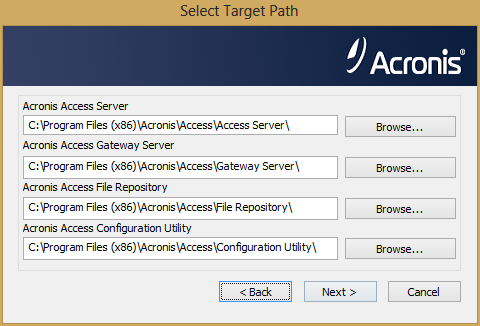
Either use the default paths or select new ones for each component and press OK.
Set a password for the user Postgres and write it down. This password will be needed for database backup and recovery.
Choose a location on a shared disk for the Postgres Data folder and press Next.
A window displaying all the components which will be installed appears. Press OK to continue.
When the Acronis Access installer finishes, press Exit.
Creating the cluster group
Open the Cluster Administrator and open Groups.
Right-click on Groups and select New and then Group. Give the cluster group a proper name. (e.g. Acronis Access, AAS Cluster)
Select the machines which will be a part of this cluster group and press Finish.
Configurations on the Active node
Configure your Gateway Server's database to be on a location on a shared disk.
Navigate to C:\Program Files (x86)\Acronis\Access\Gateway Server\
Find the database.yml file and open it with a text editor.
Find this line: database_path: './database/' and replace ./database/ with the path you want to use (e.g. database_path: 'S:/access_cluster/database/').
Note: Use slashes(/) as a path separator.
Note: You can copy the configured database.yml from the first node and paste it to the second node.
Adding all of the necessary services to the Acronis Access cluster group
Complete the following procedure for each of the following services: AcronisAccessGateway, AcronisAccessPostgreSQL (this may be different depending on the version of Acronis Access), AcronisAccessRepository and AcronisAccessTomcat
Right-click on the Acronis Access cluster group.
Open New and select Resource.
Enter a name for the service and select the correct cluster group.
From the Resource Type drop down menu select Generic Service and press Next.
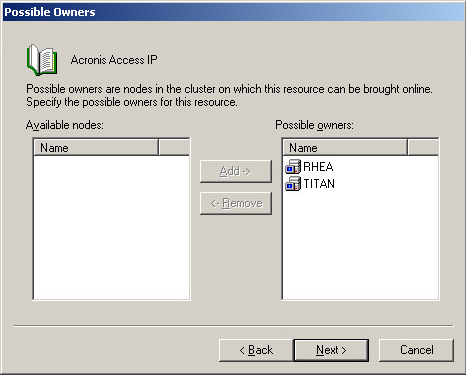
Make sure both of your nodes are listed as Possible owners and press Next.
Skip the dependencies for now by pressing Next.
Enter the correct service name of the service you are adding (e.g. postgresql-x64-9.2) and press Next.
Skip the Registry Replication window for now by pressing Next.
Press Finish to complete the procedure.
Setting an IP address for the cluster group
Right-click on the Acronis Access cluster group.
Open New and select Resource.
Enter a name for the resource and select the correct cluster group.
From the Resource Type drop down menu select IP Address and press Next.
Make sure both of your nodes are listed as Possible owners and press Next.
Skip the dependencies for now by pressing Next.
Enter the IP address you will use for this cluster group.
Enter the subnet mask and press Finish.
Adding a shared disk
Right-click on the Acronis Access cluster group.
Open New and select Resource.
Enter a name for the resource and select the correct cluster group.
From the Resource Type drop down menu select Physical Disk and press Next.
Make sure both of your nodes are listed as Possible owners and press Next.
Skip the dependencies for now by pressing Next.
Select an available disk from the drop down menu and press Finish.
Configuring dependencies
For PostgreSQL and Acronis Access File Repository do the following:
Right-click on the appropriate service and select Properties.
Click on the Dependencies tab.
Click on Modify.
Select the shared disk you have added and move it to the right side.
Press OK.
For PostgreSQL also do the following:
Click on the Registry Replication tab.
Press Add and enter the following: SYSTEM\CurrentControlSet\Services\AcronisAccessPostgreSQL\(For older versions of Acronis Access the service may be different. e.g. postgresql-x64-9.2)
For the Acronis Access Gateway Server service do the following:
Right-click on the appropriate service and select Properties.
Click on the Dependencies tab.
Click on Modify.
Select the IP Address and Physical disk and move them to the right side.
Press OK.
For the Acronis Access Tomcat service do the following:
Right-click on the appropriate service and select Properties.
Click on the Dependencies tab.
Click on Modify.
Select the PostgreSQL and Acronis Access Gateway Server services and move them to the right side.
Press OK.
Bringing the cluster group online and using the Configuration Utility
Right-click on the cluster group and press Bring online.
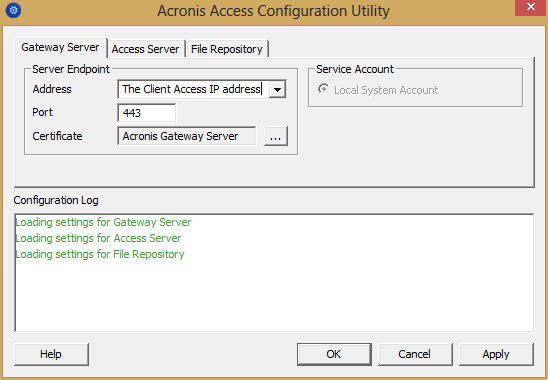
Launch the Configuration Utility. On a clean install, this is generally located at C:\Program Files (x86)\Acronis\Access\Configuration Utility
Configure the Acronis Access Gateway Server service to listen on the IP address(es) for the Acronis Access Service group.
Configure the Acronis Access Server service to listen on the IP address(es) for the Acronis Access Service group.
Note: If Accept connections on port 80 is selected, Tomcat will listen for incoming traffic on the unsecure port 80 and redirect it to the HTTPS port you have specified above. If you have another program listening on port 80, do not check this box.
Configure the Acronis Access File Repository to listen on localhost and change the Filestore path to be on the shared disk. This path should be the same for both nodes.
Click OK to complete the configuration and restart the services.
Installation and configuration on the second node
Disable any anti-virus software you have or it may interrupt the installation procedure resulting in a failed installation.
Install Acronis Access on the second node, but this time use the default Postgres Data location and the same postgres user password as for the first node.
Complete the installation.
Configure your Gateway Server's database to be on a location on a shared disk.
Navigate to C:\Program Files (x86)\Acronis\Access\Gateway Server\
Find the database.yml file and open it with a text editor.
Find this line: database_path: './database/' and replace ./database/ with the path you want to use (e.g. database_path: 'S:/access_cluster/database/').
Note: Use slashes(/) as a path separator.
Note: You can copy the configured database.yml from the first node and paste it to the second node.
Note: The path should match the path set on the first node.
Move the cluster group to the second node. To do so, right-click on the cluster group and click on Move Group.
Launch the Configuration Utility. On a clean install, this is generally located at C:\Program Files (x86)\Acronis\Access\Configuration Utility
Configure the Acronis Access Gateway Server service to listen on the IP address(es) for the Acronis Access Service group.
Configure the Acronis Access Server service to listen on the IP address(es) for the Acronis Access Service group.
Note: If Accept connections on port 80 is selected, Tomcat will listen for incoming traffic on the unsecure port 80 and redirect it to the HTTPS port you have specified above. If you have another program listening on port 80, do not check this box.
Configure the Acronis Access File Repository to listen on localhost and change the Filestore path to be on the shared disk. This path should be the same for both nodes.
Click OK to complete the configuration and restart the services.