

To add a new Windows server to an existing backup cluster, you need to log in to your Acronis Backup Management server from this machine and download and install a backup client.
New servers can also be added remotely, but it requires additional server preparation, which we’re trying to avoid!
PLEASE NOTE: Your VM/Servers must be able to communicate with each other and, preferably, be on the same network — see “How to Open Ports for Acronis Backup 12.5 Installation on Microsoft Azure.”
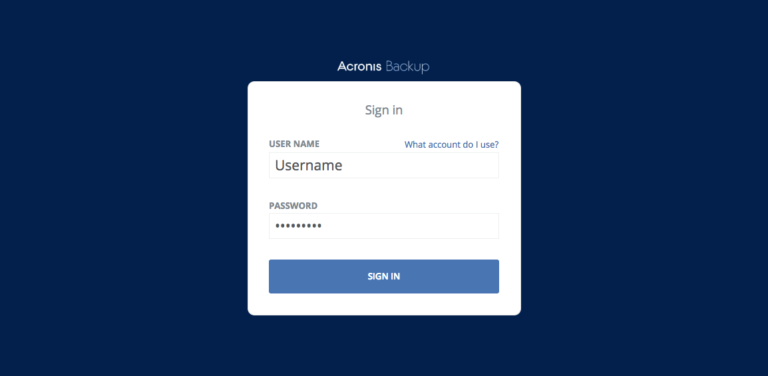
Log in with RDP and open your Acronis Backup Management Server in the web browser by going to URL First-VM-IP:9877 — just substitute the “First-VM-IP” with the IP address of your first Windows VM (the one that runs the Acronis Backup Management Server).
Enter your first VM’s Administrator’s username and password and click “Sign In”.
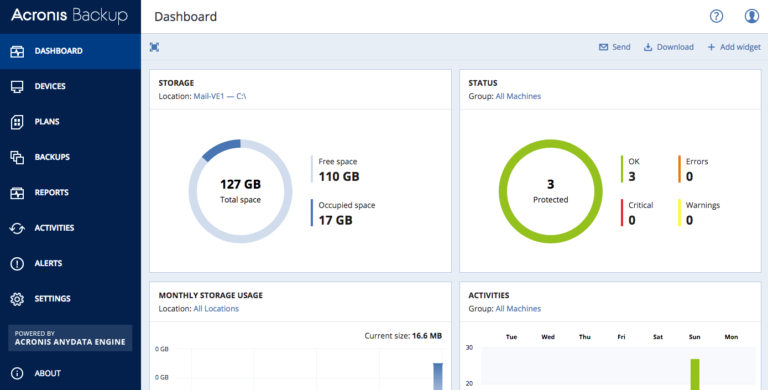
After signing in, you should see the main backup dashboard (yours may look different, depending on which widgets you have enabled).
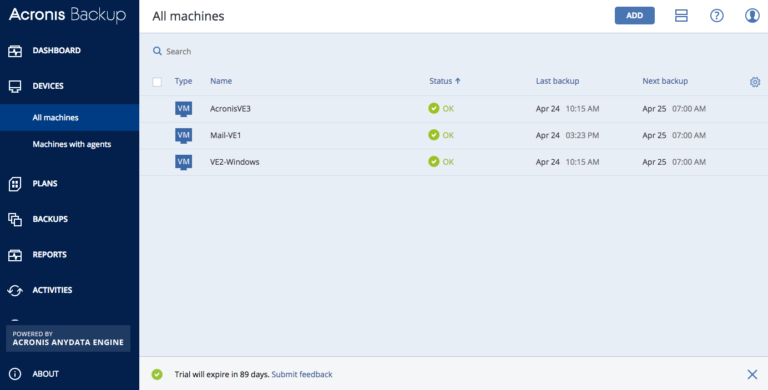
Click Devices and then the “Add” button at the top right.
Click “Windows” in the Servers category:
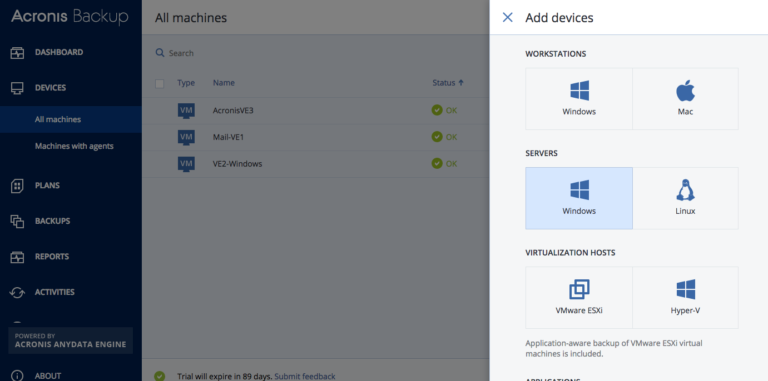
Click the “Download” button to download the installer and run it manually (because you’re already logged in to the server that you wish to protect).
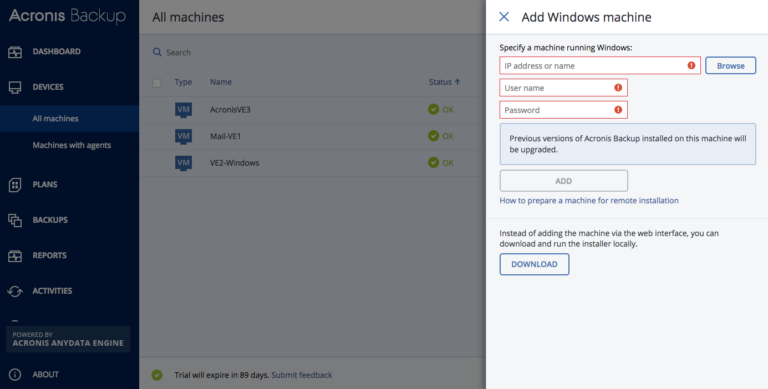
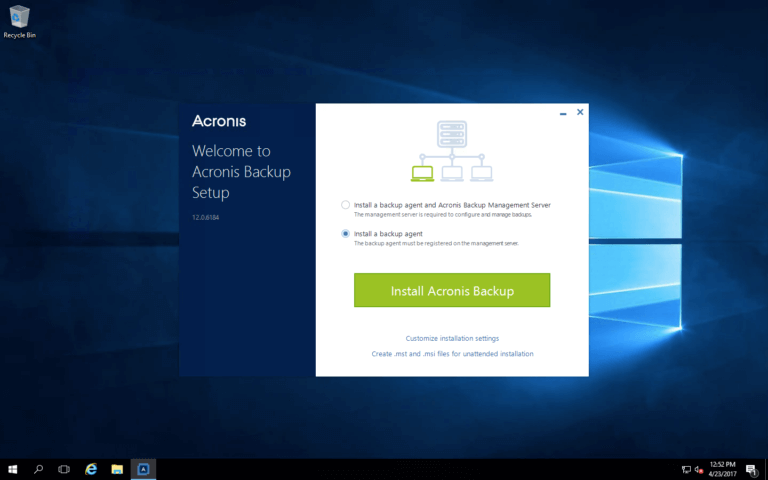
Download the file and run the installer. Select “Install a backup agent.”
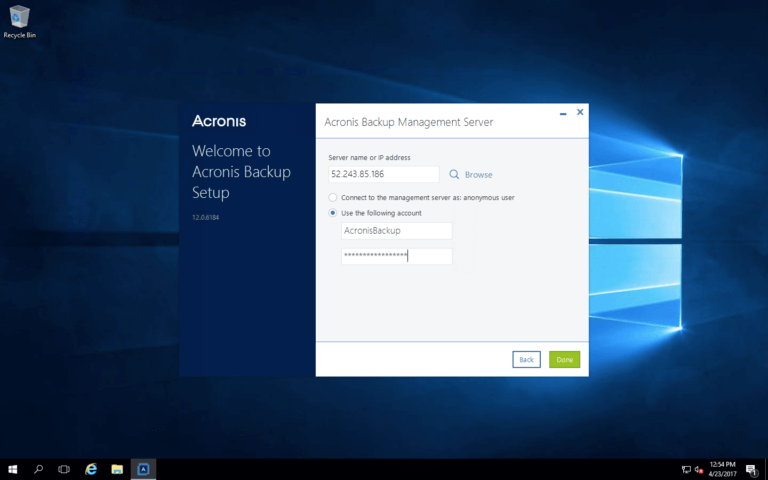
Enter the IP address of the VM that runs the management server (your first Windows VM) and its Administrator’s username and password. Click “Done.”
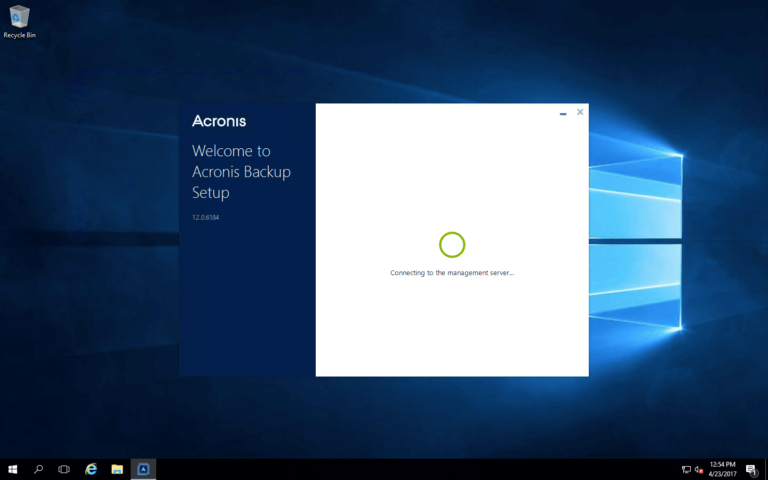
Now just sit and wait. The installer will try to connect to the management server and add this server to the list of machines to backup.
That’s it! After it’s installed, open Acronis Backup Management Server in a web browser as you did above and you should see this server under “Devices – All machines”. Now you can setup a backup plan as you did for your first VM.
Written by
About Acronis
Acronis is a leader in AI-native cyber protection, unifying data protection, cybersecurity, IT operations and hybrid infrastructure to deliver business continuity, security and compliance with less cost and complexity. More than 21,000 service providers trust Acronis to protect over 750,000 businesses in 150 countries. Acronis is headquartered in Schaffhausen, Switzerland.