
To build a reliable disaster-recovery foundation for your Mac, maintain regular disk clones alongside your Time Machine backups. Acronis True Image allows you to schedule automatic weekly clones that capture an exact, bootable replica of your entire system. Time Machine is excellent for incremental file recovery, but a full clone is what saves you when drives fail, systems refuse to boot, or critical data becomes corrupted. Many users realize this only after losing work, money, or irreplaceable files because they relied on a single backup method. Keeping both, Time Machine for file history and Acronis True Image for full-system cloning, ensures immediate recovery, uninterrupted workflows, and complete protection when unexpected failures strike.
Nowadays, most of our fears are related to losing the data that we have been storing for years, and the bad news is that we have all been there, and it is definitely not a pleasant feeling. Although Apple devices are considered some of the most reliable on the market, they sometimes fail, and we lose or damage them unintentionally. That's the exact moment when you realize that you are not afraid of losing the device itself, but of losing your precious memories, photos, videos, documents, or work projects forever.
Luckily, we live in a digital world where technologies advance faster than ever, and we have the ability to equip ourselves with reliable and effective hard drive cloning software for Mac to have peace of mind knowing that, whatever the circumstances, your precious data will still be recoverable. After all, you can replace your devices, but you can't restore what's not backed up.
In this article, we will talk about how cloning works on macOS, what we can protect with it, why you should clone your hard drive, what features to look for when choosing the right software, and which are the top 5 best platforms on the market.
How hard drive cloning works on macOS
People use hard drive cloning software for Mac to copy all of their valuable content from one drive to another, including their operating system, settings, personal files, and applications. You can also use it to avoid reinstalling your systems from scratch and speed up the process significantly with minimal manual effort.
The whole process works by copying all of your data sector by sector to create a complete system replica that you can use for easy restoration after a hardware failure, natural disaster, cyberattack, or when needing to migrate from your old drive to a new one.
When you clone the hard drive of your Mac, the computer literally makes a twin of your original drive onto another drive. But it doesn't only copy your personal files or the visible ones, it creates something far more complex. It also copies the hidden parts that tell your Mac how to start up, like the boot loaders and system partitions and the way the APFS file system is organized. Many people think the process is as simple as copying and pasting files from one drive to another, but this is actually a much deeper and more sophisticated process.
To make things clearer, you should understand that there are two main approaches this happens through:
- Block-level cloning: This method copies every single block of data, whether it's used or not.
- File-level cloning: This approach works by walking through your Mac's file system and copying only the actual data that exists there.
Note that you can keep using your Mac during hard drive cloning because many tools use a smart approach. They actually take an APFS snapshot first, then clone from that snapshot, which captures all your files, apps, and settings at that exact moment.
On Intel Macs, if the cloning process is done correctly and completed successfully, your new drive can boot just like the original one. However, on Apple silicon Macs (like M1, M2, and M3), things get much more complicated because of hardware security restrictions and something called the Signed System Volume (SSV). Apple uses a security system that locks down your operating system and heavily restricts which drives can boot the system. This means cloned drives typically won't be bootable on Apple silicon Macs due to security restrictions, so you'll need to install macOS fresh on the new device first, then migrate your apps, personal files, and settings.
What’s actually cloned: system files, apps, boot info, and more
When you use cloning software, it duplicates your original hard disk by capturing the complete file system structure. This means your macOS, all installed apps, your personal documents, settings, and the boot information that starts up your Mac will be cloned.
Cloning vs. imaging: what’s best for Mac users?
Cloning makes a copy of your hard drive that's ready to use immediately. Imaging, on the other hand, writes everything into a disk image file for storage or archival purposes. In other words, you need to restore it to a disk before you can use it. In real life, many users and organizations use cloning for quick recovery and migration, but rely on imaging when they need granular restore options. So it's up to you to determine which approach fits and could better address your needs.
Why do Mac users clone their hard drives?
We all need to clone our hard drives when migrating to a new device or simply creating a backup plan in case something unexpected happens with our current devices. However, this must be done in a way that protects our data and ensures we won't lose anything. You can do this by using hard drive cloning software for Mac, which, as we've mentioned earlier, creates an exact copy of our original hard drive with all the information stored there—from the operating system to personal data files.
Upgrading to a larger SSD or faster drive
When you get a new SSD or a newer, faster hard disk, cloning can transfer your entire contents seamlessly on Intel Macs, saving you the time and effort needed if you do it manually. On Intel Macs, the cloning process copies everything from your old hard drive to the new one without requiring you to reinstall macOS or reconfigure your settings from scratch. On Apple Silicon Macs, you typically need to install macOS fresh first, then migrate your data and settings from the clone.
Creating a bootable backup for emergencies
On Intel Macs, if your startup disk fails (and we all know it happens way too often), having a bootable backup lets you boot directly from your backup disk and continue working. However, Apple Silicon Macs cannot boot from cloned external drives due to Signed System Volume (SSV) restrictions. So cloned backups serve primarily as data recovery sources rather than bootable alternatives. This local backup approach gives you an option for quick data recovery without waiting for endless restore procedures that often end up with corrupted data.
Transferring data to a new Mac
When transferring data to a new Mac, hard drive cloning can help preserve your files and settings. However, for Apple Silicon Macs, you'll typically need to install macOS fresh on the new device first, then use Time Machine, or third-party cloning software to transfer your applications, personal files, and settings. This way, you can ensure that your new device has all your important data and configurations, though the process may require some reconfiguration.
Cloning before macOS upgrades or reinstalls
Upgrades and reinstalls cause operational disruptions and can even make your device freeze or constantly load without starting properly. To avoid such scenarios, you can create backup clones before major system changes. This way, if macOS recovery fails or updates cause major problems, you can recover your data and settings from the cloned backup after reinstalling macOS if needed.
Setting up identical environments across multiple devices
Organizations of various sizes use cloning to deploy consistent configurations, though this is more complex with modern Macs due to hardware-specific security features. While you can clone user data, applications, and settings to streamline setup processes, each Mac typically requires individual macOS installation and configuration, especially for Apple Silicon devices.
What features should your Mac disk cloning software include?
Your cloning software should handle everything from creating bootable backups to working seamlessly with Apple's latest file systems and hardware. To pick up the best Mac cloning software, make sure it includes the following features:
Bootable clone support
You need software that can create bootable drives, since they let you start your Mac directly from the backup disk. It's like having a spare tire in your car. These bootable backups serve the same purpose, because the clone works as a complete replacement for your startup disk. So if you face unexpected issues, you always have plan B. Note that this feature works primarily on Intel Macs, as Apple Silicon Macs cannot boot from external drives due to security restrictions. Even on Intel Macs, newer macOS versions may have limitations due to security features.
Incremental cloning options
Incremental cloning is known for two things: it saves time and, most importantly, storage space by copying only changed data after the initial clone. Reliable Mac cloning software does not copy your entire contents every single time. Instead, it uses an incremental approach and replicates only the new or modified data since your last backup.
APFS and HFS+ file systems compatibility
It's well known that macOS uses APFS, while older systems run HFS+. Your disk cloning software must be able to handle both file systems, regardless of whether it's running on Apple Silicon or Intel processors.
Smart scheduling and automation
Being able to automate and schedule the cloning process from the first step to the last one is a blessing. That's why you should opt for software that offers advanced automation with flexible scheduling options, since this will allow you to focus on your daily work instead of babysitting the cloning hard drive process every single time.
Real-time verification and data integrity checks
You need hard drive cloning software for Mac that is able to verify your data is copied successfully by comparing the source disk with your external hard drive. This will guarantee your clone contains exact copies of all your files and allows you to recover flawlessly when needed.
Compatibility with Apple Silicon and Intel Macs
If you have multiple Mac devices that work with different chip types, then you need cloning software that is compatible with them. And by that, we are talking about Apple Silicon and Intel Macs. So before making a decision about which software to choose, double-check if you can use it across all of your devices.
Clean UI with minimal learning curve
A clean and user-friendly interface is the second most important thing to look for in software after its features and capabilities. Such an intuitive interface will allow you to start backup tasks quickly without wasting time, which is highly important.
Top 5 Mac hard drive cloning tools - Comparison
Selecting the best disk cloning software can be overwhelming with countless options flooding the market, each promising different features and capabilities. With so many choices available, it's easy to get lost in technical specifications and marketing claims without knowing which solution actually delivers reliable performance for your specific Mac setup.
To cut through the noise and provide a better understanding while saving you hours of research, we've evaluated the leading disk cloning software options available in 2025. Our analysis focuses on real-world performance, compatibility with both Intel and Apple Silicon Macs, ease of use, and the features that matter most for Mac users. Here are the five best hard drive cloning tools that consistently deliver results.
Acronis True Image
Acronis True Image protects everything with full image backup, which securely copies your operating system, programs, settings, files, and boot information. It allows you to back up to external devices, NAS devices, network shares, and the cloud with its one-click cloning capability. And with cross-platform support, you ensure that you are not limited to Mac devices (macOS computers, iPhones, and iPads) but also Windows and Android (phones and tablets).
The software offers an intuitive and user-friendly interface that allows you to remotely back up for others anywhere in the world. The platform equips you with the ability to easily recover files including photos, documents, or particular files, or your entire system; that flexibility is rare and extremely useful in different data loss scenarios.
On top of that, you get not only cloning, backup, and recovery, but also top-notch cybersecurity features to protect your data and make it accessible only to authorized users. Active threat protection, antivirus, anti-malware, and anti-ransomware powered by AI and behavioral analysis are responsible for protecting your devices and all the information stored on them against the prying eyes of cybercriminals. In other words, with Acronis True Image, you equip yourself with backup, recovery, and robust protection under one license.
Key features:
- Full image backup
- Active disk cloning
- File and folder backup
- Cross-platform file migration
- Incremental and differential backups
- Recover to similar or dissimilar hardware
- Disk and partition backup
- Microsoft 365 backup, including Outlook and OneDrive
- Backup scheduling
- Cloud storage
- Local-to-cloud backups
- Cloud restores
- Cloud sync and share
- Automatic backups
Carbon Copy Cloner (CCC)
Carbon Copy Cloner is Mac backup and disk-cloning software that is popular among power users because with it you can restore a single file, copy one folder to another, recover your whole Mac, or migrate data to a new Mac. While it can create bootable backups on Intel Macs, Apple Silicon users will need to use it primarily for data migration and recovery purposes.
Key features:
- Full disk cloning
- APFS snapshot support
- Incremental backups
- Smart file copying
- Bootable backup creation
- File and folder synchronization
- Custom backup scheduling
- Cloud-only file backup
- Backup task automation
- Automatic disk mounting/unmounting
- Snapshot browsing and recovery
- Time-based file recovery
- Mobile device backup (iOS)
SuperDuper!
SuperDuper is another popular disk copying and backup software for Macs. It can make fully bootable backups and clones of your Mac hard drives with HFS Plus or APFS volumes. SuperDuper is known for its simplicity and fast full-drive clones, making it an ideal solution for users looking for software that can create an exact copy of their hard drive which can be used to boot their computer on Intel Macs in case the original drive fails. The software is available in a free (limited functionality) and a paid (full functionality) version.
Key features:
- Full disk cloning
- Bootable backup creation
- Smart Update (incremental backups)
- Backup scheduling
- Sandbox backups
- APFS and HFS+ support
- File-by-file copying
- Disk image creation
- Shell script integration
- User-defined backup filters
- Copy verification
- APFS snapshot support
- Clone file support
- Pre/post-copy package installation
- Automatic startup disk selection
- Progress monitoring (Progress bar)
- Multiple copy modes (Erase then copy, Smart Update, Copy newer files)
- Time Machine integration
- Automatic drive mounting/unmounting
Disk Utility (built-in tool)
Disk Utility is built-in free software that comes with macOS, used for managing storage devices, allowing you to format, partition, and create disk images. It can also be used for repairing disk errors, checking a disk's S.M.A.R.T. status, combining multiple disks into a RAID set, and of course securely deleting data. In other words, it offers basic cloning and imaging capabilities, though bootable clones are limited to Intel Macs.
Key features:
- First Aid disk repair
- Disk and volume verification
- Storage device formatting
- Disk partitioning
- Live partition resizing
- APFS volume management
- Disk image creation (.dmg/.cdr)
- Disk image mounting and unmounting
- Disk image conversion, compression and encryption
- Disk cloning and restoration
- APFS container management
- Partition scheme conversion (APM/GPT/MBR)
- Storage space analysis
- File system format selection
- Encrypted volume creation
- Startup disk management
- External device mounting/ejecting
- Command-line interface (diskutil/hdiutil)
- Multi-format compatibility
- Bootable media creation
- Volume backup and restore
- Disk integrity verification
Clonezilla (advanced)
Clonezilla is an open-source suite of disk cloning, disk imaging, and system deployment utilities. It serves as a powerful bare metal backup and deployment solution that operates from a preinstallation environment, booting from USB flash drives, CD/DVD-ROMs, or even Android mobile phones and tablets.
The platform uses an intelligent approach to disk cloning because it can perform block-level sector-by-sector copying, and it typically uses a file system-aware method that copies used blocks; that way, it improves efficiency. Clonezilla Live is used for single endpoint operations, Clonezilla Lite Server for network deployments, and Clonezilla SE (Server Edition) for massive multicast deployments, allowing you to clone over 40 computers simultaneously. Note that this software is used mostly by tech-savvy users and less frequently by basic users, and it takes some time to learn how to work with it.
Key features:
- Disk-to-disk cloning
- Disk-to-image backup
- Image-to-disk restoration
- Partition-level cloning
- Whole disk cloning
- File system-aware copying
- Block-level sector copying
- Used-blocks-only saving
- Multiple file system support (ext2/3/4, NTFS, FAT, HFS+, APFS, etc.)
- Network storage deployment (SSH, Samba, NFS, WebDAV)
- Compression support
- Bare-metal recovery
- Massive simultaneous cloning (40+ machines)
- PXE network booting
- Proportional partition table creation
- Automatic file system resizing
- Source disk verification
- VMware VMFS support
- Boot device flexibility
how to clone a Mac hard drive step-by-step: Acronis True Image
With Acronis True Image, cloning your Mac's hard drive is as easy as playing a video game. You will just need an external drive. To make it easier for you, we've created this step-by-step guide:
Step 1. Preparation for the process:
- If you have Parallels Desktop virtual machines running on your Mac, you will have to turn them off.
- Double-check that the source and destination drives are connected to your Mac. Or if you need to connect another Mac device, make sure that it is connected in target disk mode.
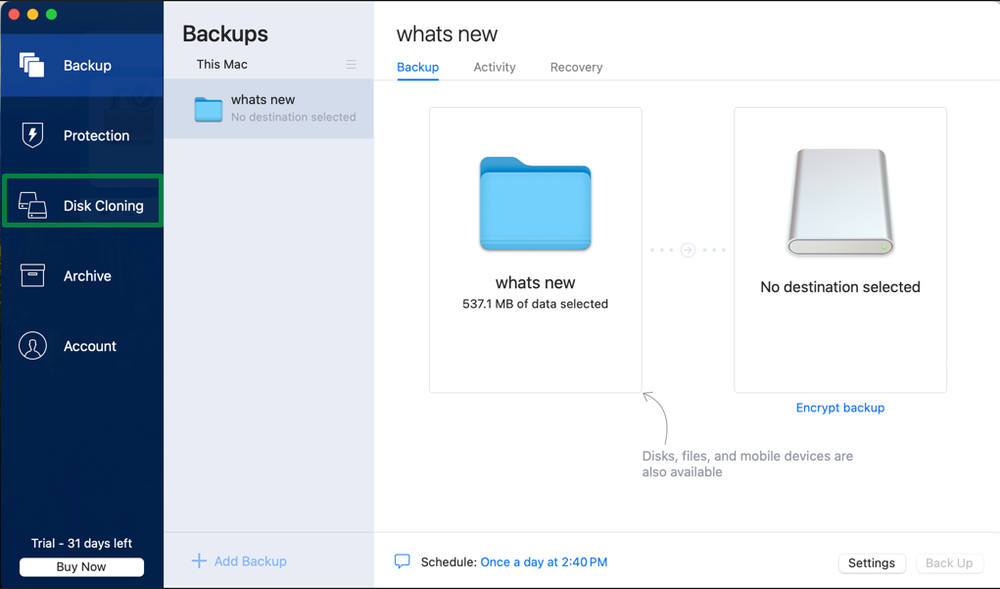
Step 2. Launch Acronis True Image. Next, on the sidebar, click Disk Cloning.
Step 3. By default, your internal system drive is always pre-selected as the cloning source. In case you want to change it, you just have to click the cloning source icon, and then select the drive that you want to clone. Next, you have to select the destination disk.
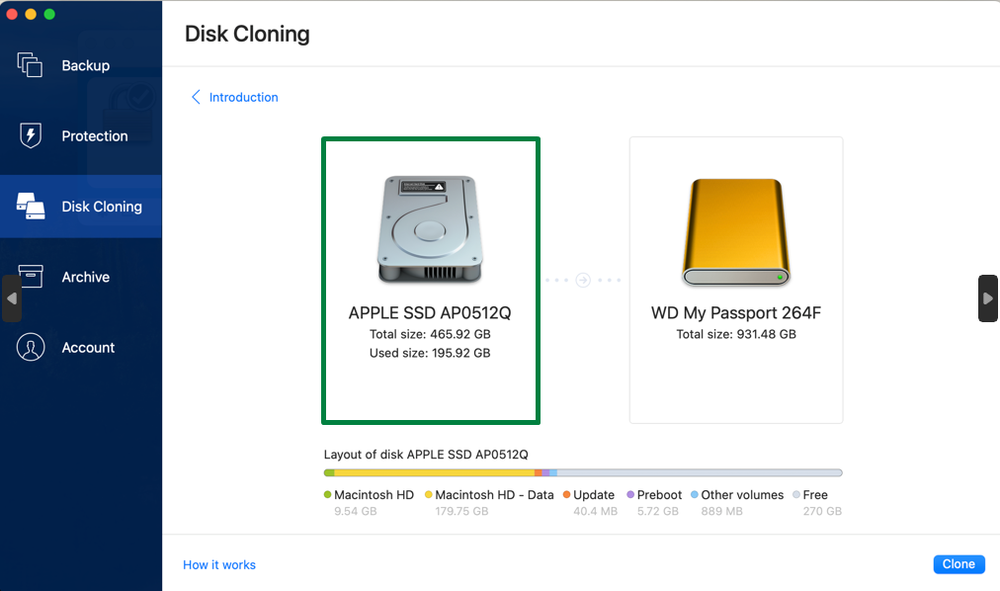
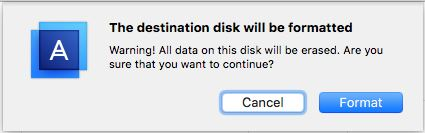
Important: Beginning the cloning procedure will format the target drive, resulting in permanent deletion of any stored information. Ensure your destination drive has no size limits that could affect the cloning process. Verify that the destination disk either lacks valuable content or is blank before proceeding.
Step 4. Left-click Clone to start the process.
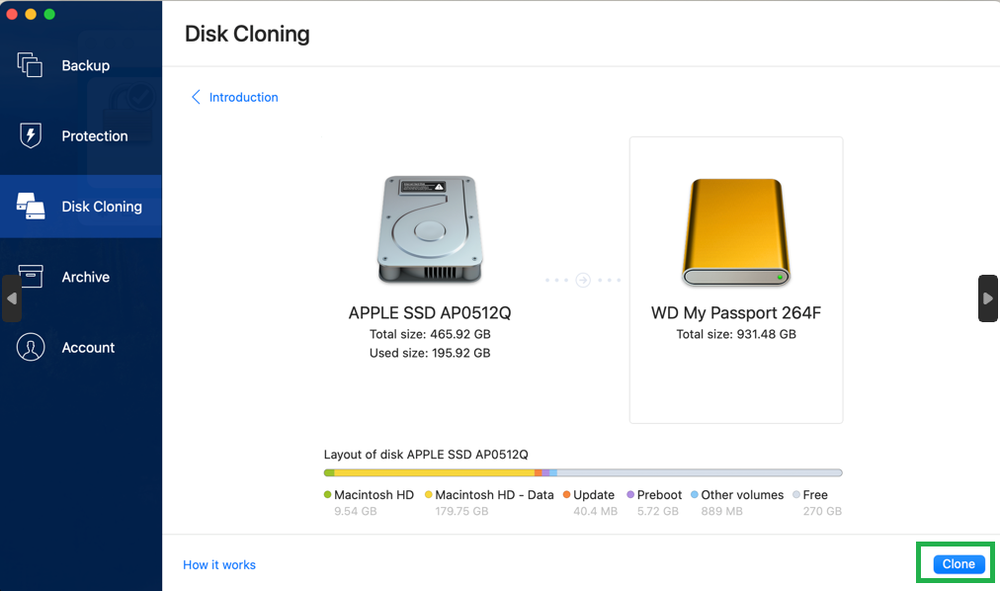
- Keep in mind that if the destination disk contains data, the software will ask you for confirmation to format the target disk. Click Format to proceed.
Post-Cloning Steps
Step 1. "After the data has been cloned successfully, you must verify that the cloned disk is functioning as expected. To do this, you can simply shut down your computer, then replace your primary hard drive with the cloned one. Then, start your computer and check if it boots and that all your data, apps, and settings are there.
Step 2. Test the bootable clone by powering on your computer. Note that on Intel Macs, you can hold the Option key during startup to select the boot drive, or access Startup Disk preferences in System Settings. On Apple Silicon Macs, bootable clones typically won't work due to security restrictions, so this step applies primarily to Intel Macs. If everything is done correctly, your Mac should boot from the cloned drive as if you were using your primary hard drive.
Common use cases and how to handle them
In real life, each of us has faced situations where we had to clone our Mac hard drive to an external SSD, migrate data to a new MacBook, use a dual-boot setup with a cloned macOS version, or use it for recovery purposes. How much easier it would be if we used hard drive cloning software for Mac, such as Acronis True Image. That's why we are going to discuss these most frequent use cases where such software proves to speed up the process and make it a lot more secure, reliable, and efficient.
Migrating data to a new MacBook
You have bought a new MacBook and are thinking about how much data you must transfer. That's not a concern anymore if you are using Acronis True Image, because with it you can seamlessly migrate between Macs. To do so, clone your old hard drive to an external hard drive using the step-by-step cloning process outlined earlier in the article.
Once done with that, connect the newly created backup disk to your new computer. For Apple Silicon Macs, you'll need to install macOS fresh first, then restore your data and applications from the clone. For Intel Macs, you may be able to restore the entire clone. All your settings, applications, personal files, and other files will appear exactly as they were, eliminating the annoying, time-consuming, and labor-intensive process of reinstalling everything manually from scratch.
Dual-boot setup with a cloned macOS version
Create a separate APFS volume using Apple's Disk Utility, which your Mac already has, then install a fresh copy of macOS on that volume. You can then use Acronis True Image to migrate your applications and settings to create a testing environment where you can experiment with new software deployments or major system updates without risking your main installation. In case something goes wrong during testing, simply boot from your original startup setup. Note that this approach works best on Intel Macs, as Apple Silicon Macs have additional security restrictions.
Cloning as part of a disaster recovery strategy
To equip yourself with an exact replica of your Mac's data, implement regular disk cloning using Acronis True Image's scheduling features alongside your existing Time Machine backup. While Time Machine handles incremental file recovery, maintain weekly clones using Acronis. This will equip you with immediate data recovery and granular file restoration options during unexpected situations.
Using clones in professional IT workflows
Many IT professionals use the smart approach of using Acronis True Image's cross-platform support to deploy standardized configurations across different Mac devices. The process is quite simple yet very effective; you just have to create a master image that includes the particular software and settings using Acronis, then deploy the data to as many devices as needed. However, modern Macs require individual macOS installations due to hardware-specific security features, so this approach focuses primarily on deploying applications, settings, and user data rather than complete bootable systems. Thus, you benefit from consistency and reduced setup time for new employees.
Security and privacy considerations
Using different tools always makes us start wondering whether our data and sensitive information is protected or at risk.
- Does cloning copy your passwords and login sessions?
Yes, when using cloning software, it copies whatever is on your disk, including your Keychain database, saved browser cookies, and even app tokens. So if you clone your user volume, those encrypted secrets go to the target disk too. But here's the thing: the keychain remains encrypted and requires your original Mac login password to unlock and access the stored credentials. It does not somehow expose those credentials, meaning that the risk is not increasing.
Keep in mind that browser session cookies can also carry over, which may keep you logged into websites until sessions expire. Our advice here to feel protected by all means is to encrypt both the source and destination disks and treat the clone like the original.
- Securely wiping the original drive post-clone
Handing off or throwing away your old Mac? You should definitely first confirm your data is accessible on the clone. For Intel Macs, you can test if the clone boots; for Apple Silicon Macs, verify that your files and applications can be accessed and restored from the clone. Afterward, you can securely erase the original: on Apple Silicon/T2 Macs, use Erase All Content and Settings; on others, boot to Disk Utility in macOS Recovery and perform a secure erase.
Encryption (FileVault) is best practice; erasing an encrypted drive destroys the encryption keys, making prior data unrecoverable even if the physical data blocks remain.
- Protecting your cloned data with encryption
Encryption is one of the most effective methods to protect your data at all levels. So when using hard drive cloning software for Mac, prioritize encrypting your data. If you back up to a USB drive or external disk, it is mandatory to encrypt that device as well. Note that many vendors support encrypted destinations and granular exclusions. Acronis True Image encrypts your data by using the AES 256-bit encryption algorithm to scramble your backup files, making them unreadable to anyone without the correct password.
Summary
Nowadays, both organizations and home users need cloning software, because devices get lost, fail, or they get infected with malware, viruses, or ransomware.
Nowadays, both organizations and home users need cloning software because it protects their data, eases the process of data migration, and helps companies maintain their business continuity. If you need to upgrade hardware, replicate multiple systems, or build a fail-safe recovery strategy, selecting the right solution is of utmost importance.
Equally important is to understand that cloning isn't a complete backup replacement. While clones provide you with instant access to your data, they can't offer the versioning, compression, and incremental capabilities that backups deliver. Cloning hard drives works best for immediate data recovery and hardware upgrades (replacing your old Macs with new ones). But backups are the best for protecting against ransomware (avoiding paying the demanded ransom), accidental deletions, and long-term data retention.
Instead of purchasing cloning software, opt for a platform that can deliver cloning tools, backups, instant recovery, and cyber protection features, like Acronis True Image. With it, you can use cloning as part of your broader data protection strategy, allowing you to combine instant-access clones with scheduled backups, offsite storage, and cloud solutions. Acronis equips you with an intuitive, reliable disk cloning experience, combining backup, security, and automation in one powerful platform. With the user-friendly and simple interface and enterprise-grade protection, you can rest assured that you have instant cloning capabilities alongside robust backup features.
Acronis Restore Time
- 20–40 minutes on slower media
- Much faster on SSDs and high-performance storage
Manual Reset / Reinstall Time
- 20–60 minutes just to reinstall macOS
- 2–4+ hours to reinstall applications, configure settings, sign in to accounts, and restore files
- Sometimes longer depending on system complexity
So make the wise move and don't postpone providing yourself with peace of mind. Try Acronis True Image now and experience the ultimate cloning and backup software that keeps your systems protected!
FAQs
Does a cloned drive include macOS or just my files?
Yes, a cloned drive contains macOS, your applications, system preferences, user accounts, and all personal files. But keep in mind that bootability depends on your Mac model and macOS version. For instance, Apple Silicon Macs (M1/M2/M3) are unable to boot from external drives at all, while Intel Macs running Big Sur or later face complications due to Apple's Signed System Volume security feature. That's one of the reasons why many cloning apps nowadays focus on data-only backups instead of bootable clones.
Can I clone a Mac that won’t boot?
Yes, you can clone a Mac device that won't boot. On Intel Macs, you must use Target Disk Mode (if supported and not disabled by T2 chip settings). On Apple silicon Macs that can boot to Recovery, use Share Disk from macOS Recovery. This will allow you to mount the internal storage on another Mac.
In case your Apple silicon Mac can't boot, use DFU mode with Apple Configurator 2 or Apple Devices app. These will allow you to clone the source disk to a destination disk, or simply install macOS on the destination and then migrate your data. If your Mac's storage is removable (Mac Pro, older iMacs and MacBooks), you can directly disconnect the drive and attach it via USB/Thunderbolt/SATA. After cloning, you must try booting the new disk or install fresh macOS and use Migration Assistant to transfer your data.
Can I use a clone to recover from ransomware or malware?
Yes, you can use a clone to recover your Mac from ransomware or malware, but only if it was created before the attack. Otherwise, restoring it will bring back the infection. If you are 100% sure that the clone is clean, you can use it. Immutable backups stored offline are the safest, since it's almost impossible to encrypt or destroy them, so make sure you always have one by your side.
Do I need an external SSD, or will an HDD work?
You can clone your Mac's hard drive either on an SSD or HDD. They will store the clone of your system safely, but when using an SSD the cloning process itself is 3-5 times faster. It will also give you better long-term performance when booting from the clone. HDDs have one advantage: they are cheaper, yet they get the job done reliably. So it's up to you to decide whether you need a more budget-friendly option or a more expensive drive delivering faster data transfer speed.
Simplify Mac Cloning: Discover Our Powerful Tool Today!
Written by
About Acronis
Acronis is a leader in AI-native cyber protection, unifying data protection, cybersecurity, IT operations and hybrid infrastructure to deliver business continuity, security and compliance with less cost and complexity. More than 21,000 service providers trust Acronis to protect over 750,000 businesses in 150 countries. Acronis is headquartered in Schaffhausen, Switzerland.