Performing offline imaging
Offline imaging means that the master system is stopped and the master machine boots into the Acronis environment or into Windows Preinstallation Environment.
To perform offline imaging
- Install Management Console.
-
Do one of the following:
- Create a bootable media that contains Master Image Creator.
OR
- Install Acronis PXE Server, connect the console to the PXE server, and upload Master Image Creator. Make sure that network booting is enabled on the master machine.
While creating the bootable media or uploading Master Image Creator to the PXE server, you can configure the image creator to start automatically after a time-out.
- Configure the master system.
-
Depending on your choice in step 2, boot the master machine into Master Image Creator from the bootable media or from the PXE server.
The boot menu appears on the master machine.
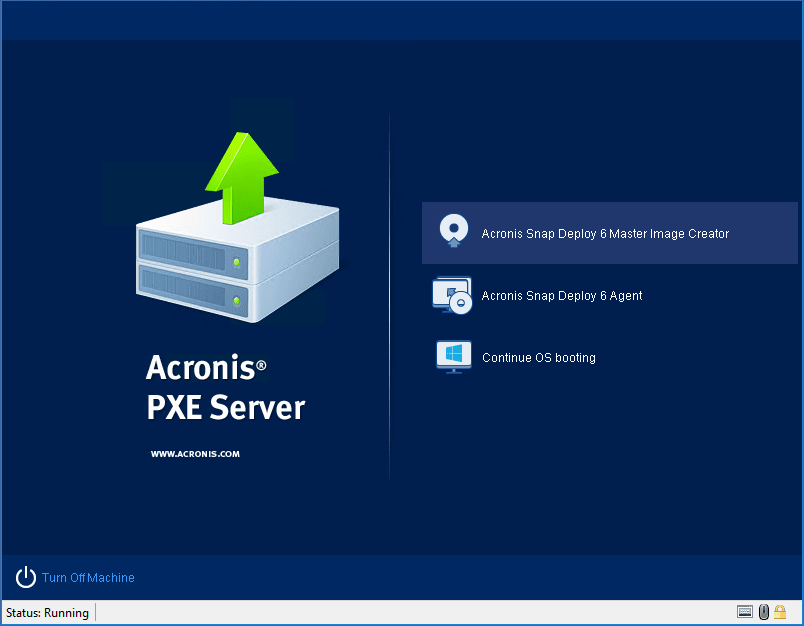
The boot menu on the master machine
If the boot menu does not appear and the machine has Secure Boot enabled, we recommend temporarily disabling Secure Boot on this machine as a workaround.
- In the boot menu, click Master Image Creator.
-
The master image creator establishes a network connection to be able to save the image in a network folder. A dialog box appears asking whether you want to configure the network connection that will be used by the image creator.
By default, Master Image Creator uses DHCP auto configuration. Ignore the prompt (click Cancel) if there is a DHCP server on the network or the image has to be placed on a local hard disk or a removable media.
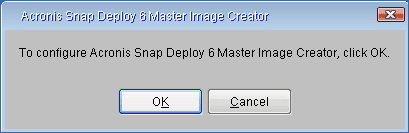
Prompt for configuring the master image creator
The master image creator can be preconfigured to apply the default network settings automatically after a time-out.
The manual configuration is needed if automatic configuration is not possible (no DHCP server on the network) or does not succeed. To configure the network connections manually, click OK in the prompt window.
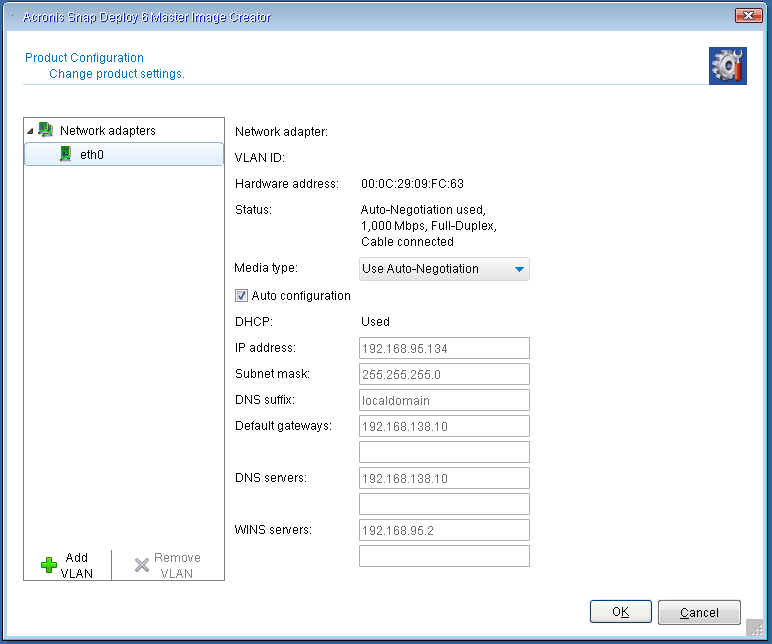
Master Image Creator configuration: network settings
The Product configuration window allows you to configure network settings for each network interface card (NIC) of the machine.
Changes made during a session will be lost after the machine reboots.
Adding VLANs
In the Product configuration window, you can add virtual local area networks (VLANs). Use this functionality if you need access to a backup location that is included in a specific VLAN.
VLANs are mainly used to divide a local area network into segments. A NIC that is connected to an access port of the switch always has access to the VLAN specified in the port configuration. A NIC connected to a trunk port of the switch can access the VLANs allowed in the port configuration only if you specify the VLANs in the network settings.
Set the preferable values and click OK.
The VLAN settings configured on the Windows machine where you run the Media Builder are included in the created Linux-based media automatically, so you do not need to create them manually after booting from this media.Master Image Creator configuration: Wi-Fi settings
You can configure Linux-based media to connect to a Wi-Fi network after booting. Thus, on machines with no Ethernet connection, the media can connect to an OS Deploy Server via Wi-Fi and start the deployment from there.
Configuring the Wi-Fi settings
In the Product configuration window, click Wi-Fi settings and select one of the available Wi-Fi networks. A dialog will prompt you to enter the password. Enter the password and click Join.
The Wi-Fi connection details will be included in the Linux-based media during media creation, so after booting, the machine will connect to the specified WI-Fi network automatically.
When the Master Image Creator starts, it displays the Master Image Creator welcome window.
- In this window, click Next, and then follow the steps of the Master Image Creator wizard.