Why do I need it?
When you see that the free space on your hard drive is not enough for your data, you might want to buy a new, larger hard drive and transfer all your data to the new drive. The usual copy operation does not make your new hard drive identical to the old one. For example, if you open File Explorer and copy all files and folders to the new hard drive, Windows will not start from the new hard drive. The Clone disk utility allows you to duplicate all your data and make Windows bootable on your new hard drive.
Before you start
We recommend that you install the target (new) drive where you plan to use it and the source drive in another location, for example, in an external USB enclosure. This is especially important for laptops.
Note: It is recommended that your old and new hard drives work in the same controller mode (for example, IDE or AHCI). Otherwise, your computer might not start from the new hard drive.
Using the Clone disk utility
To clone a disk:
If the program finds two disks, one partitioned and another unpartitioned, it will automatically recognize the partitioned disk as the source disk and the unpartitioned disk as the destination disk. In this case, the next steps will be bypassed and you will be taken to the cloning Summary screen.
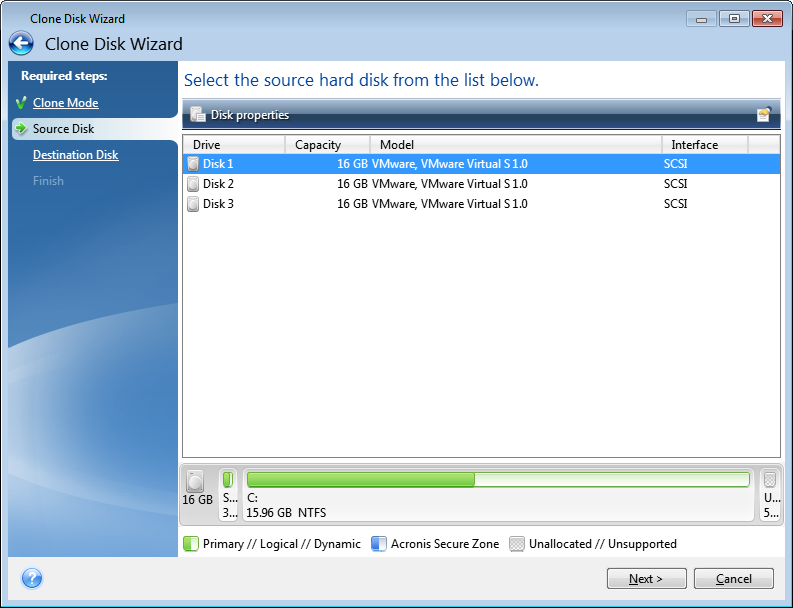
If any disk is unpartitioned, the program will automatically recognize it as the destination and bypass this step.
By default, Acronis True Image 2019 shuts down the computer after the clone process finishes. This enables you to change the position of master/subordinate jumpers and remove one of the hard drives.
Additionally, watch the English-language video instructions at https://goo.gl/bjWRLL.