Backing up disks and partitions
As opposed to file backups, disk and partition backups contain all the data stored on the disk or partition. This backup type is usually used to create an exact copy of a system partition or the whole system disk. Such a backup allows you to recover your computer when Windows works incorrectly or cannot start.
Virtual disks (e.g., VHD and VHDX) are not supported as sources for disk-level backups or entire PC backups. However, these formats can be selected for file-level backups or used as backup destinations.
To back up partitions or disks
- Start Acronis True Image.
- On the sidebar, click Backup.
- Click Add backup.
- [Optional] To rename the backup, click the arrow next to the backup name, click Rename, and then enter a new name.
- Click the Backup source area, and then select Disks and partitions.
-
In the opened window, select the check boxes next to the partitions and disks that you want to back up, and then click OK.
Virtual disks stored on the same volume as the backup source may cause snapshot creation issues and result in backup errors. Avoid this setup for a seamless backup process.
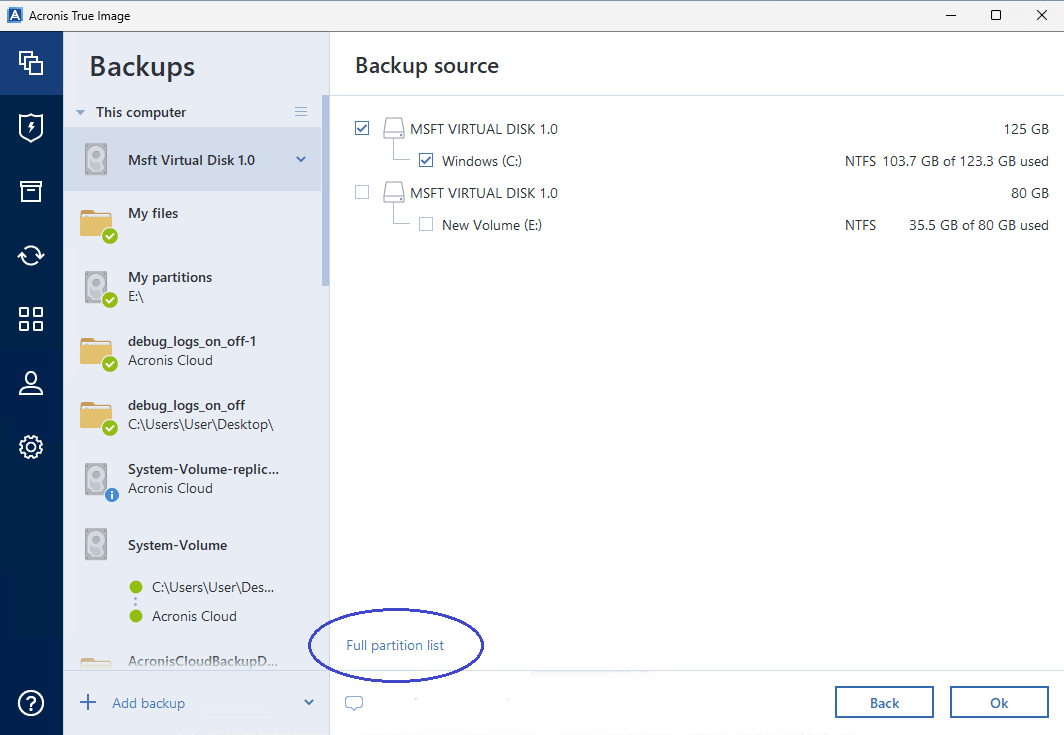
By default, the window opens in Short partition list mode, which shows the main disks and partitions for quick selection.
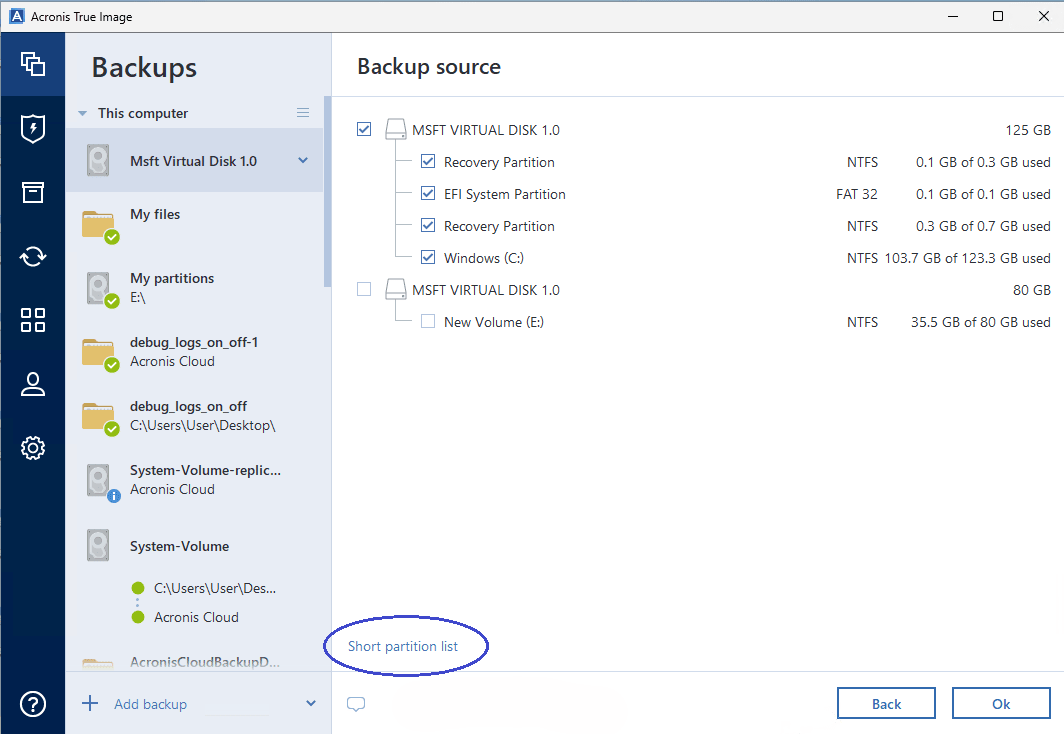
To view all partitions (including hidden/system partitions), click Full partition list.
To return to the compact view, click Short partition list.
To back up dynamic disks you can use only the partition mode.
-
Click the Backup destination area, and then select a destination for backup:
-
Acronis Cloud – Sign in to your account, and then click OK.
- Your external drive – When an external drive is plugged into your computer, you can select it from the list.
- NAS – Select an NAS from the list of found NAS devices. If you have only one NAS, Acronis True Image will suggest using it as a backup destination by default.
- Browse – Select a destination from the folder tree.
If possible, avoid storing your system partition backups on dynamic disks, because the system partition is recovered in the Linux environment. Linux and Windows work with dynamic disks differently. This may result in problems during recovery.
When backing up virtual disks, verify the backup destination to ensure compatibility and performance. Cloud backups and dynamic disk configurations may exhibit limitations in detection and performance.
-
- [Optional] Click Options to set the options for the backup. For more information, see Backup options.
- [Optional] Click the Add a comment icon, and then type a comment to the backup version. Backup comments will help you to find the necessary version later when recovering your data.
-
Perform one of the following:
- To run the backup immediately, click Back up now.
- To run the backup later or on a schedule, click the arrow to the right of the Back up now button, and then click Later.
Example: Testing virtual disk backups
- Create a virtual hard disk (VHD or VHDX) using Windows Disk Management.
- Format the virtual disk with a supported filesystem (e.g., NTFS).
- Select the virtual disk as a file-level backup source or destination and proceed with the backup.
- Avoid storing the virtual disk on the same physical drive as the backup source.
Known issue: Entire PC backups intentionally skip virtual disks based on their interface type. To back up virtual disks, use file-level backups or create separate tasks for these disks.
Backing up disks and partitions using bootable media
You can also perform disk- and partition-level backups by booting your computer from Acronis bootable media. This is useful if Windows cannot start or when you want to create a backup prior to loading the operating system.
To learn how to create such bootable media, see Creating Acronis bootable media.
To back up disks or partitions from bootable media:
- Boot from the created media and click Backup or Back up now.
- Select Disks and partitions as the backup source.
- Choose a destination drive or network share. Cloud storage is available only when using WinPE- or WinRE-based media.
- Start the backup.
For more details, see the Knowledge Base article: How to back up with Acronis bootable media.
Backups are run one by one. The newest backups are added to queue until the previous ones are completed.
When you back up your data to Acronis Cloud, the first backup may take a considerable amount of time to complete. Further backups will likely be much faster, because only changes to files will be transferred over the internet.
Once an online backup is started, you are free to close Acronis True Image. The backup process will continue in background mode. If you suspend the backup, turn off your computer, or disconnect it from the internet, the backup will resume when you click Back up now or when the internet connection is restored. A backup interruption does not cause your data to be uploaded twice.