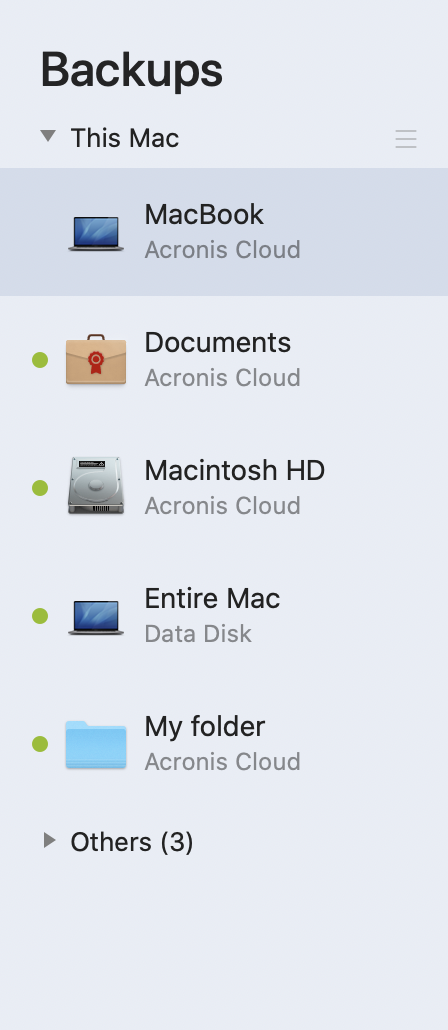
While working with the backup list, you will see special icons. The icons give you a backup type and backup current state.
Backup state indication:
Icon |
Description |
|---|---|
|
The backup successfully completed. |
|
The backup is queued. |
(blinking) |
The backup is in progress. |
|
The backup was paused by user. |
|
The last backup failed. |
|
The backup completed with warnings. |
Sorting backups in the list
By default, the backups are sorted by the date they were created, starting from the newest to oldest. To change the order, select the appropriate sorting type in the upper part of the backup list. You have the following options:
Command |
Description |
||
|---|---|---|---|
|
|
Name |
This command sorts all backups in alphabetical order. To reverse the order, select Z —> A. |
|
|
Date created |
This command sorts all backups starting from newest to oldest. To reverse the order, select Oldest on top. |
Sort by |
Date updated |
This command sorts all backups by date of the last version. The newer the last backup version, the higher the backup will be placed in the list. To reverse the order, select Least recent on top. |
|
|
|
Size |
This command sorts all backups by size, from biggest to smallest. To reverse the order, select Smallest on top. |
|
|
Source type |
This command sorts all backups by the source type. The order is as follows: entire PC backups - disk backups - file backups - nonstop backup. |
|
|
Destination type |
This command sorts all backups by the destination type. The order is as follows: internal disk drives - external disk drives - NAS devices - network shares - Acronis Cloud. |


