Excluding items from backups
Before you start a backup, you can reduce the backup size by excluding data that does not need to be backed up.
You can exclude files and folders the following ways:
-
Manually, from any backup
To exclude an item, specify it explicitly or use a mask.
-
Automatically, from a backup to Acronis Cloud
Acronis True Image analyzes the backup source and suggests that you exclude your local data that can be downloaded from third-party Cloud storage.
Excluding items manually
-
When configuring a backup, click Settings, and then click Exclusions.
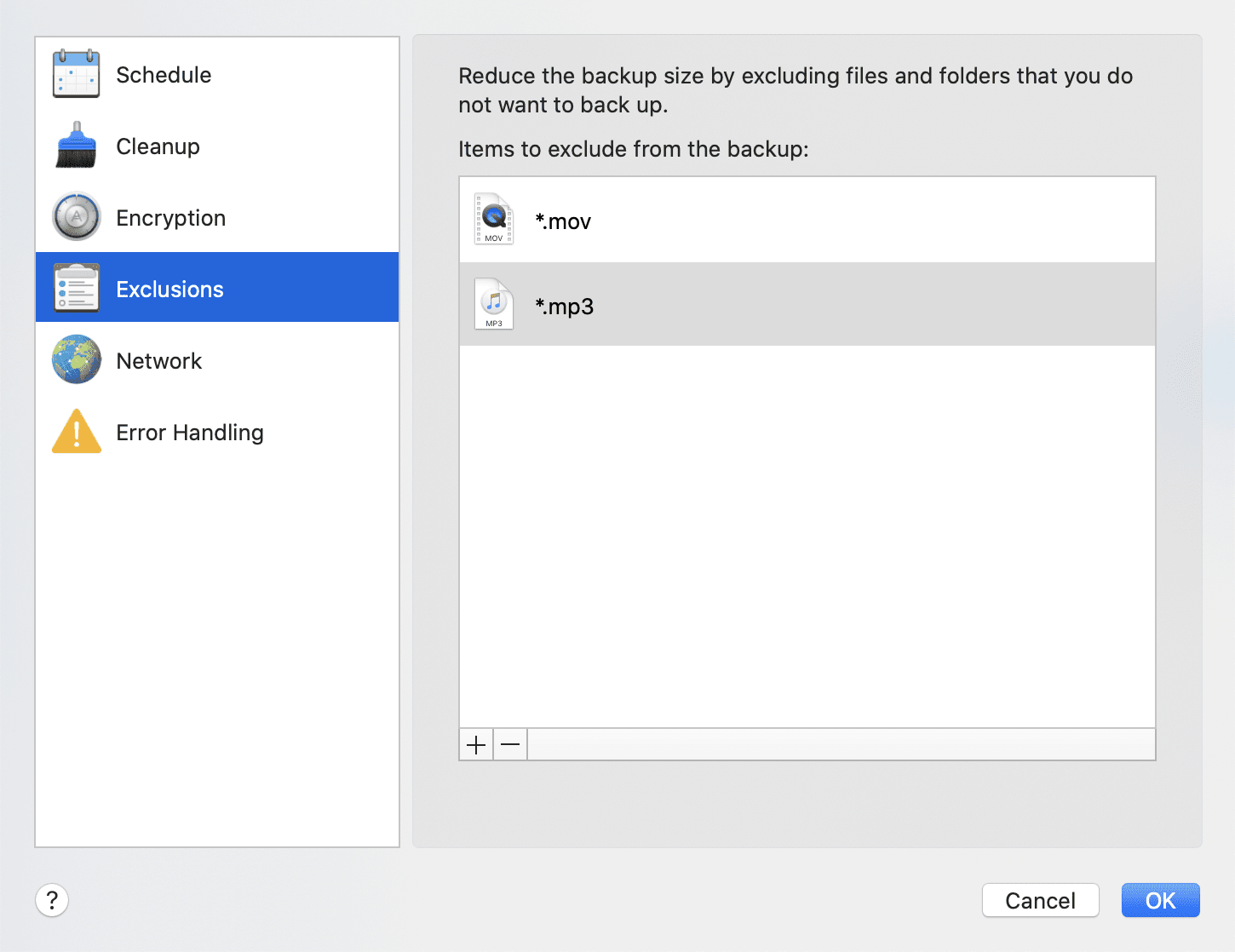
-
Click the Plus sign, and then click one of the following:
-
Exclude specific file or folder
Browse to the item that you want to exclude, select it, and then click Exclude.
-
Exclude by mask
Enter an exclusion mask by using wildcard characters (* and ?), and then click Exclude.
Examples of exclusion masks:
- *.ext - all files with an .ext extension will be excluded.
- ??name.ext - all files with an .ext extension, having six letters in their names starting with any two symbols (??) and ending with name, will be excluded.
-
-
Select or clear the Do not notarize digitally signed files check box (available for notarized backups only).
The main purpose of a notarized backup is protection of your personal files. Therefore, there is no need to back up system files, application files, and other files that have a digital signature. To exclude these files, select the corresponding check box.
- Click OK.
Excluding recoverable data from online backups
You can exclude data protected with the following services:
- iTunes
- Dropbox
- Microsoft OneDrive
- Google Drive
- BoxSync
- Yandex.Disk
- SugarSync
Acronis True Image suggests that you exclude data only when the following conditions are met:
- The third-party service is currently enabled.
- There is more than 250 MB of data stored in the corresponding folder.
To exclude items from an online backup
-
Before you start the backup process, click Optimize backup below the backup source icon.
- Select the check boxes next to the items that you want to exclude, and then click Done.