SFM Shares
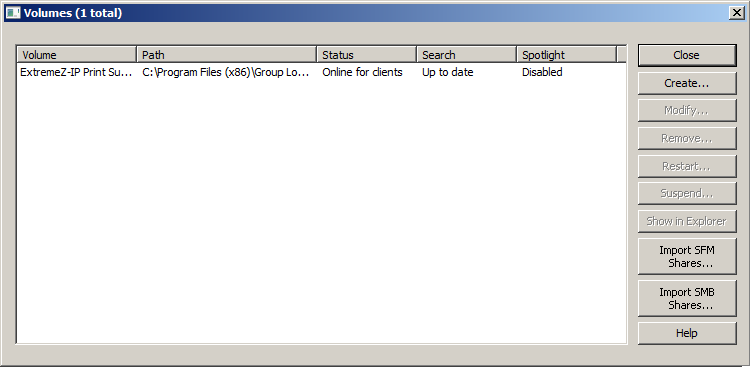
Each time the Access Connect Administrator is launched, Access Connect checks for any SFM shares that are not being shared as Access Connect volumes. If any such volumes exist, the Import SFM Shares button within the Volumes dialog becomes active.
If you choose Import SFM Shares, Access Connect volumes are created for those SFM shares. In addition, if the SFM service is running, it is stopped and the service disabled. The following bullets describe how Access Connect treats shares.
SMB Shares
Each time the Access Connect Administrator is launched, Access Connect checks for any SMB shares that are not being shared as Access Connect volumes. If any such volumes exist, the Import SMB Shares button within the Volumes dialog becomes active. If you choose to do so, Access Connect creates new volumes for those SMB shares. Access Connect does not replicate hidden shares (for example, C$). When Mac OS X clients copy files to a server with SMB, they do not have access to alternate streams, where resource fork and Finder information is usually stored. Instead, this resource fork and Finder information is written to a separate file, the “dot underscore” file. To the Macintosh client, this action happens behind the scenes—the dot underscore is hidden, and all they see is a single file that appears to contain resource fork and Finder information. But when you view these files from Windows, the dot underscore file is just another hidden file with no relation to the original data file.
In Access Connect, the server can migrate resource and Finder information from the dot underscore file into alternate data streams of the file so that Macintosh clients have access to that information. When a Macintosh client requests information about a file or folder, Access Connect first tries to read from the file or folder’s Finder info stream (AFP_AfpInfo) and, in the case of a file, from its resource stream (AFP_Resource). If either one of these streams is missing, Access Connect tries to find a corresponding dot underscore file. If that file is present and contains the necessary data, the data are migrated into the appropriate stream. The dot underscore migration feature is enabled by default, but you can disable this feature. To disable this feature, set the refreshable registry value ServerMigratesDotUnderscoreFiles to 0 and if Access Connect is running use the Refresh Registry button in the Administrator to read in the new value.
In addition, Access Connect contains an optional feature that allows Access Connect to delete a dot underscore file after its contents have been migrated into the data file. This feature is disabled by default, but you can enable this feature. To enable this feature, set the refreshable registry value ServerDeletesMigratedDotUnderscoreFiles to 1 and refresh the registry. Since Access Connect migrates dot underscore information only when necessary, dot underscore migration may occur over time, as Access Connect explores new areas of the volume for the first time. Access Connect does not perform this migration all at once when the volume first comes online. If the dot underscore file is locked, or has different permissions than the corresponding data file, the information may not be copied to the AFP_Resource or AFP_Info streams. This fact is logged. The dot underscore migration is a transition feature and is not designed for simultaneous use with SMB. Access Connect does try to deal with AFP clients accessing a file while it is still being written with SMB, but this is not a supported use of the feature. Any changes that occur to dot underscore files after the initial migration is ignored by Access Connect, since the service always “prefers” its alternate streams to dot underscore files. Therefore, if a user alters the resource fork of a file over SMB after the resource fork information has been migrated by Access Connect, these changes are not migrated. While dot underscore files can contain information other than resource fork or Finder information, this other information is not migrated into the data file. The following types of information are not migrated:
Note: SMB shares will not be migrated on a Windows Cluster Server installation of Access Connect.