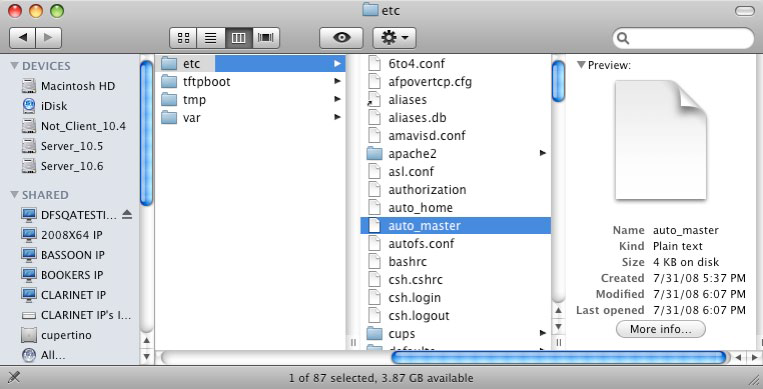
If you prefer not to install the DFS client application, some manual editing of Macintosh configuration files is required. While these files must be updated on every client machine that needs access to DFS, they are not client specific. These files can be updated on one client and then pushed out to other clients using a tool such as Apple Remote Desktop. In Mac OS X 10.5 or later, the client’s auto_master file, located in /etc, must be modified to invoke the automount of the DFS targets. The TextEdit program included with the Mac OS does not allow editing root system files. It is recommended you use the free TextWrangler application available at: http://www.barebones.com/products/textwrangler/
In the auto_master file, add the following line:
/<new volume name> /Volumes/<new volume name>/.auto_dfs
The ‘new volume name’ is the name of the Access Connect DFS volume that was created in the Namespace setup process on the DFS tab of the Settings dialog. Example: if the volume to be used for DFS roots is called ‘GLILABS’ then the auto_master line would be:
/GLILABS /Volumes/GLILABS/.auto_dfs
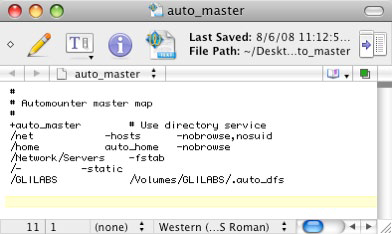
Be sure there is a new, blank line at the end of this file. If this new line does not exist, DFS will fail to function on the client. This file can be copied to any other Macintosh clients that need access to DFS; it is not necessary to manually edit the file on each client.
It is recommended that the AUTOMOUNT_TIMEOUT parameter in /etc/autofs.conf be changed to 300 (seconds) in order for changes in the DFS namespace to be reflected by AutoFS. AutoFS is used by the Macintosh client to automatically mount DFS targets as they are accessed. Once you’ve completed these steps on the Macintosh client, reboot the client so the automount changes will take effect. At this point, you will be able to mount the Access Connect DFS volume from the Macintosh client and browse and utilize your DFS structure.