Setting up a Print Queue to Provide Print Accounting Information
Once you define your codes and code descriptions, assign them to print queues as you set up print queues or modify them. You set up validation codes for each print queue; every Macintosh client using that print queue will have the same fields.
To set up a print queue to provide Print Accounting information, do the following:
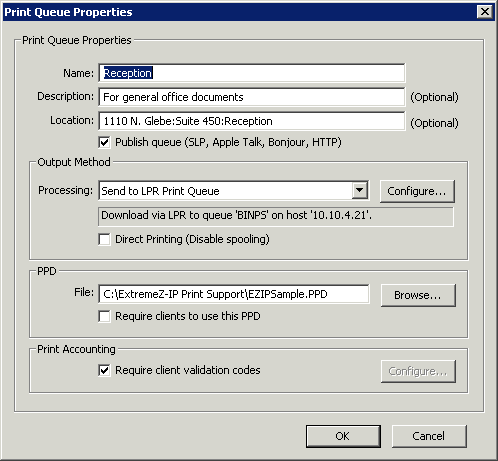
In the Access Connect Administrator, click Print Queues.
Select an existing print queue and click Modify or click Create to create a new print queue.
Check the Require client validation codes checkbox.
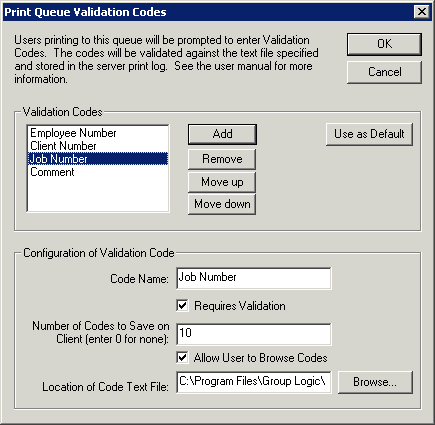
To add the first code, click Configure. You can change the name of the code to anything you would like. This name appears next to the field on the Macintosh print dialog box.
If you want to require the Macintosh user to fill in the code before printing instead of it being optional, check the checkbox Requires Validation. Use fields that do not require validation for information such as comments.
If you want the Macintosh user to be able to browse the code list, place a check in the Allow User to Browse Codes checkbox.
Click Browse to locate the text file that contains the codes you set up earlier.
Click OK to save the entered code or click Add to add additional code fields.
Provide the PPD for each Macintosh by placing it on the Access Connect server and configuring the print queue to require it.