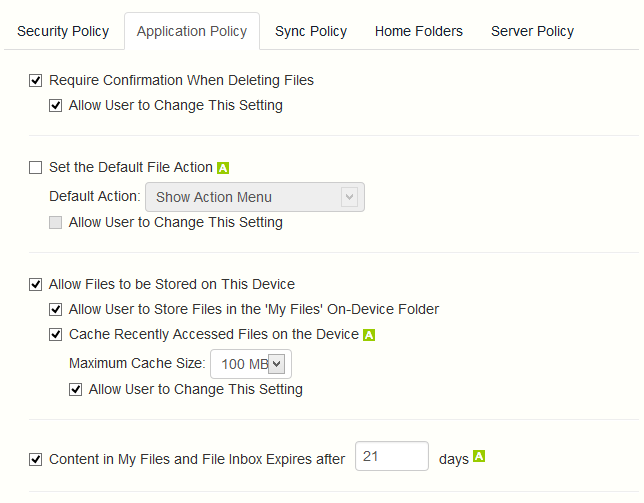
Require Confirmation When Deleting Files - When enabled, the user will be asked for confirmation each time they delete a file. If you would like the user to be able to later modify this setting, select Allow user to change this setting.
Set the Default File Action - This option determines what will happen when a user taps a file in the Access Mobile Client application. If this is not set, the client application defaults to Action Menu. If you would like the user to be able to later modify this setting, select Allow user to change this setting.
Display Thumbnail Previews for Server-Side Files - When enabled, thumbnail previews will be displayed instead of filetype icons when browsing Data Sources and Gateway Servers.
Thumbnail Cache Size: - Sets how much space will be reserved for thumbnails.
Only Download Thumbnail Previews on WiFi Networks - When enabled, thumbnails will be available only if the user is connected to a WiFi network.
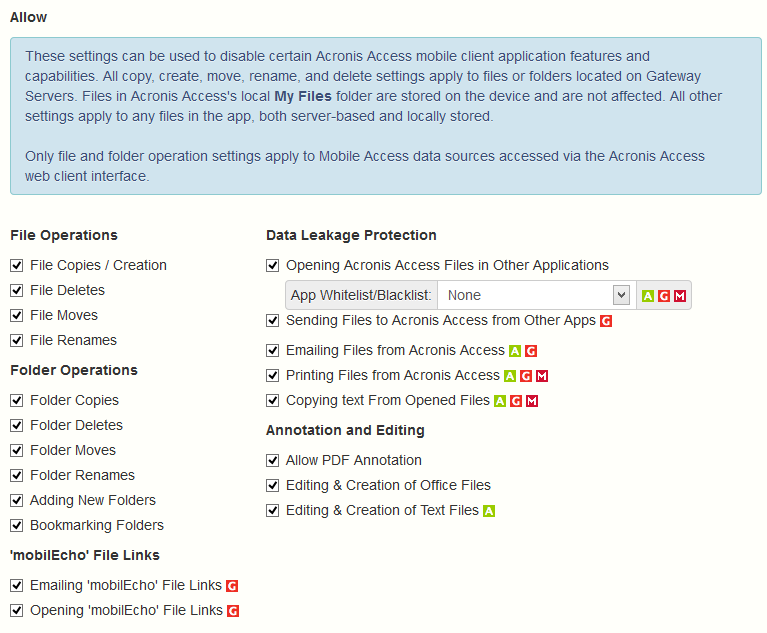
Allow
These settings can be used to disable certain Access Mobile Client application features and capabilities. All copy, create, move, rename, and delete settings apply to files or folders located on Gateway servers. Files in the mobile client's local My Files folder are stored on the device and are not affected. All other settings apply to any files in Acronis Access, both server-based and locally stored on the client.
File Operations
File Copies / Creation - If this option is disabled, the user will not be able to save files from other applications or from the iPad Photos library to a Gateway Server. They will also be unable to copy or create new files or folders on the Gateway Server server Gateway Server. This setting supersedes any NTFS permissions that client may have that allow file creation.
File Deletes - If this option is disabled, the user will not be able to delete files from the Gateway Server. This setting supersedes any NTFS permissions that client may have that allow file deletion.
File Moves - If this option is disabled, the user will not be able to move files from one location to another on the Gateway Server, or from the server to the Access Mobile Client application's local My Files storage. This setting supersedes any NTFS permissions that client may have that allow file or folder moves.
File Renames - If this option is disabled, the user will not be able to rename files from the Gateway Server. This setting supersedes any NTFS permissions that client may have that allow file renames.
Folder Operations
Folder Copies - If this option is disabled, the user will not be able to copy folders on or to the Gateway Server. This setting supersedes any NTFS permissions that client may have that allow folder creation. File copies / creation must be enabled for this setting to be enabled.
Folder Deletes - If this option is disabled, the user will not be able to delete folders from the Gateway Server. This setting supersedes any NTFS permissions that client may have that allow folder deletion.
Folder Moves - If this option is disabled, the user will not be able to move folders from one location to another on the Gateway Server, or from the server to the Access Mobile Client application's local My Files storage. This setting supersedes any NTFS permissions that client may have that allow file or folder moves. Folder copies must be enabled for this setting to be enabled.
Folder Renames - If this option is disabled, the user will not be able to rename or folders from the Gateway Server. This setting supersedes any NTFS permissions that client may have that allow folder renames.
Adding New Folders - If this option is disabled, the user will not be able to create new, empty folders on the Gateway Server.
Bookmarking Folders - If this option is disabled, the user will not be able to bookmark on-device or on-server Acronis Access folders for quick shortcut access.
Data Leakage Protection
Opening Acronis Access Files in Other Applications - If this option is disabled, the Access Mobile Client application will omit the Open In button and not allow files in Acronis Access to be opened in other applications. Opening a file in another application results in the file being copied to that application's data storage area and outside of Acronis Access control.