Inviting a user to enroll
Users are typically invited to enroll with the Acronis Access Server with an email that is sent from an Acronis Access Administrator. If a user has multiple devices, they will need to be sent one invitation email for each device that needs access.
This email includes a link to the Acronis Access app in the Apple App Store or Google Play Store, in the case the app first needs to be installed. It also includes a second link that, when tapped while on the device, will open Acronis Access and auto-complete the client enrollment form with the Acronis Access Server's name and the user's username. By using this link, a user simply enters their account password to complete client enrollment.
Using basic URL enrollment links:
You can give your users a standard URL that will automatically start the enrollment process when tapped from the mobile device.
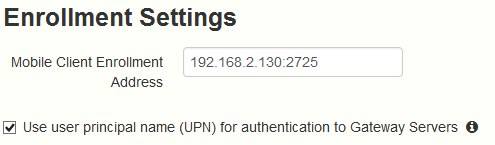
To determine the enrollment URL for your management server, open the Mobile Access tab and open the Enroll Users tab. The URL is displayed on this page.
To generate a Acronis Access enrollment invitation:
Note: Acronis Access licensing allows each licensed user to activate up to 3 devices, each additional device beyond 3 is counted as a new user for licensing purposes.
Note: If you get an error message when sending, confirm that the SMTP settings in the SMTP tab under General Settings are correct. Also, if you're using Secure connection, verify that the certificate you are using matches the host name of your SMTP server.