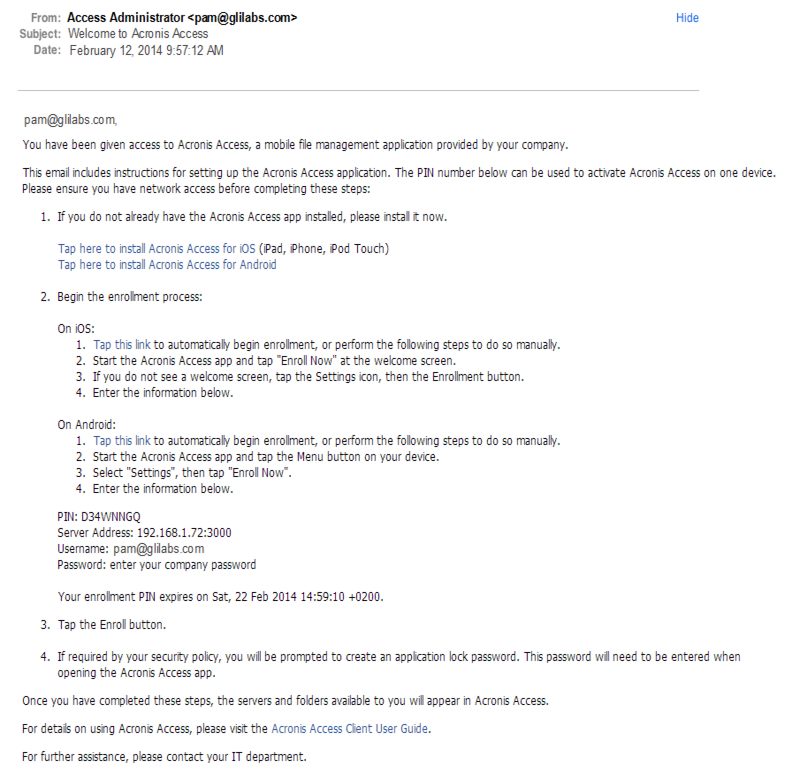
Each user sent a management enrollment invitation will receive an email that contains:
If the Access Mobile Client app has already been installed, and the user taps the "Tap this link to automatically begin enrollment..." option while viewing this email on their device, Acronis Access will automatically launch and the enrollment form will be displayed. The user's server address and username are also encoded in this URL, so these fields are auto-completed in the enrollment form. At this point, the user simply has to enter their password to complete the enrollment process.
The username and password required are the user's Active Directory username and password. These credentials are used to match them to the group policy, to access the Gateway server and if the policy allows it, the saving of their credentials for Acronis Access server logins.
If their management policy requires an application lock password, they will be prompted to enter one. All password complexity requirements configured in their policy will be enforced for this initial password, and for any change of their application lock password in the future.
To enroll in management
Enroll automatically via enrollment email
Note: The Username and Password are your standard company username and password. This is likely the same as you use to log into your computer or to your email.
Manual enrollment
If a application lock password is required for your Access Mobile Client app, you will be asked to set one. Password complexity requirements may apply and will be displayed if needed.
Ongoing Management Updates
After the initial management setup, Access Mobile Clients will attempt to contact the management server each time the client app is started. Any settings changes, server or folder assignment changes, application lock password resets, or remote wipes will be accepted by the client app at that time.
Connectivity requirements
Acronis Access clients must have network access to the Acronis Access server in order to receive profile updates, remote password resets, and remote wipes. If your client is required to connect to a VPN before they can access Acronis Access, they will also need to connect to the VPN before management commands will be accepted.
Removing Management
There are two options to remove your Access Mobile Client from management:
Depending on your Acronis Access management policy settings, you may have the right to remove the Access Mobile Client from management. This will likely result in you not being able to access corporate files servers. If you are allowed to do so, follow these steps to unmanage your device:
To unmanage your device follow the steps below:
Note: If your Acronis Access management profile does not allow you to unmanage your client, the Use Management option will not be displayed on the Settings menu. In this case the only way to remove the device from management is by uninstalling the Access Mobile Client application. Uninstalling the application will erase all existing Access Mobile Client data and settings and will return the user to default application settings after reinstalling.
To uninstall the Access Mobile Client app, follow the steps below: