- Select a backed-up machine, click Recovery, and then select a recovery point.
- Select a recovery point on the Backups tab.
Recovery to a physical machine is possible only if the disk configuration of the target machine exactly matches the disk configuration in the backup.
If this is the case, continue to step 4 in "Physical machine". Otherwise, we recommend that you perform the V2P migration by using bootable media.
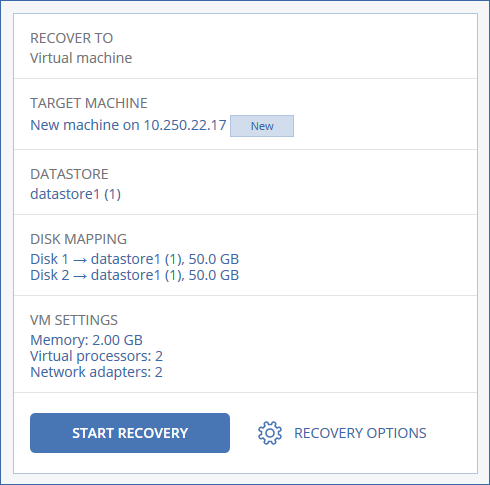
To recover to another virtual machine, click Target machine, and then do the following:
- Select the hypervisor (VMware ESXi or Hyper-V).
- Select whether to recover to a new or existing machine.
- Select the host and specify the new machine name, or select an existing target machine.
- Click OK.
- Click Datastore for ESXi or Path for Hyper-V, and then select the datastore (storage) for the virtual machine.
- Click Disk mapping to select the datastore (storage), interface, and provisioning mode for each virtual disk. The mapping section also enables you to choose individual disks for recovery.
- Click VM settings to change the memory size, the number of processors, and the network connections of the virtual machine.