If the machine is offline, the recovery points are not displayed. Do any of the following:
- If the backup location is cloud or shared storage (i.e. other agents can access it), click Select machine, select a machine that is online, and then select a recovery point.
- Select a recovery point on the Backups tab.
- Recover the machine as described in "Recovering disks by using bootable media".
- Select the hypervisor (VMware ESXi or Hyper-V).
At least one Agent for VMware or Agent for Hyper-V must be installed.
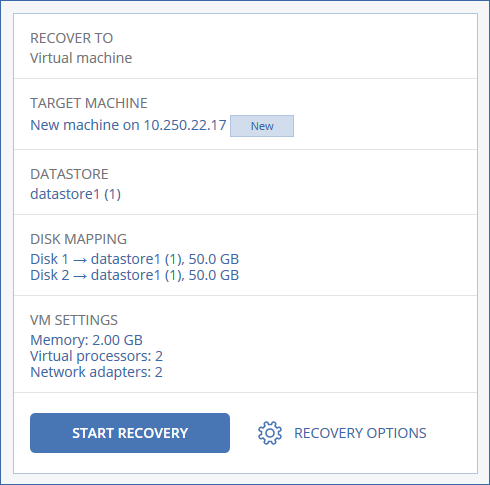
- Select whether to recover to a new or existing machine. The new machine option is preferable as it does not require the disk configuration of the target machine to exactly match the disk configuration in the backup.
- Select the host and specify the new machine name, or select an existing target machine.
- Click OK.
- Click Datastore for ESXi or Path for Hyper-V, and then select the datastore (storage) for the virtual machine.
- Click Disk mapping to select the datastore (storage), interface, and provisioning mode for each virtual disk. The mapping section also enables you to choose individual disks for recovery.
- Click VM settings to change the memory size, the number of processors, and the network connections of the virtual machine.