Enabling Managed Detection and Response (MDR)
Partner administrators enable MDR for their customers by performing the following steps:
-
Enable the MDR offering item in Management Portal for all customers that you want to protect with MDR.
This step is required regardless of the selected vendor.
-
Configure the MDR service depending on the vendor.
- Configure the Acronis MDR service for your customers in the Cyber Protect Cloud console. See Enabling the Acronis MDR Service.
- Configure the integration with a third-party MDR vendor in Management Portal. See To configure the integration with the MDR vendor's app.
Self-managed customers cannot enable MDR. For more information about configuring self-managed customers, see Configuring self-managed customer profile.
In addition, only one MDR vendor can be active per customer at a time, but you can switch the selected vendor whenever needed. You can also use different MDR vendors for different customers.
Customer-level communication offering items
In addition to the standard MDR offering item, the following offering items are available for enabling customer-level communication, where the Acronis MDR team contacts the customer directly instead of routing through the partner:
- Acronis TRU MDR Standard - direct customer - Enables customer-level communication with Standard MDR service level.
- Acronis TRU MDR Advanced - direct customer - Enables customer-level communication with Advanced MDR service level.
These offering items are available in all licensing modes (per workload, per gigabyte, and solution-based).
For Telco partners, these offering items also enable end customer self-activation. The end customers of Telco partners can activate MDR directly without partner intervention when these offering items are enabled.
The service level available for self-activation is determined by the offering item that is enabled:
- If only the Standard direct customer offering item is enabled, the customer can only activate Standard MDR.
- If only the Advanced direct customer offering item is enabled, the customer can only activate Advanced MDR.
-
If both offering items are enabled, the customer can choose between Standard and Advanced MDR during activation.
Activating both Standard and Advanced service levels for the same customer may result in additional costs for the Telco partner.
To enable the MDR offering item for a customer
- In Management Portal, go to Clients.
-
Click the icon in front of the customer name.
The service configuration pane expands to the right and the Cyber Protection service is selected.
- Click Edit.
- [For solution-based licensing mode]
- Select one of the solution packages that support MDR and enable the required offering items:
- Security and RMM + Endpoints.
- Ultimate Protection + Workstations, Servers, and Virtual machines.
Ensure that the Managed Detection and Response service and the Managed Detection and Response offering item are enabled.
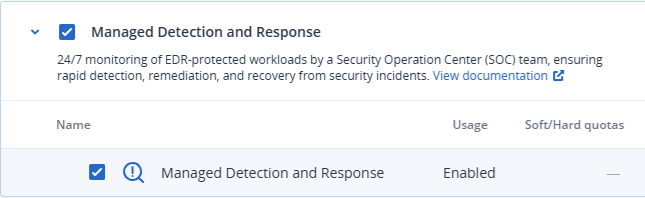
- Select one of the solution packages that support MDR and enable the required offering items:
-
[For service-based licensing mode (per workload and per gigabyte)] In the Detection and Response section, ensure that the Endpoints and Managed Detection and Response checkboxes are selected.
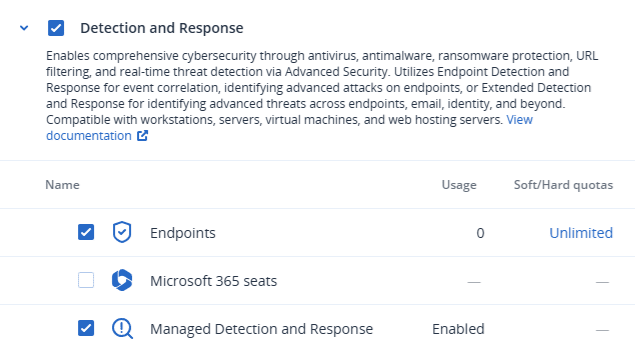
- Click Save.
To configure the integration with the MDR vendor's app
- In Management Portal, go to Integrations.
- Use the search bar to locate the MDR vendor's app.
- In the displayed MDR catalog card, click Configure.
-
In the Settings tab, click the pencil icon and enter the contact details of at least one partner contact. This contact will be contacted by the MDR vendor when a security event is detected. Note that you can add the details of up to three contacts. When done, click Enable.
When a security event is detected, the vendor calls each contact six times before moving on to the next contact. Following a call, or in the event no contact is made, the vendor sends an email to all contacts, providing an overview of the escalation and the incident.
-
In the Customer management tab, click the ellipsis icon (...) in the far right column for the relevant customer, and then click Enable.
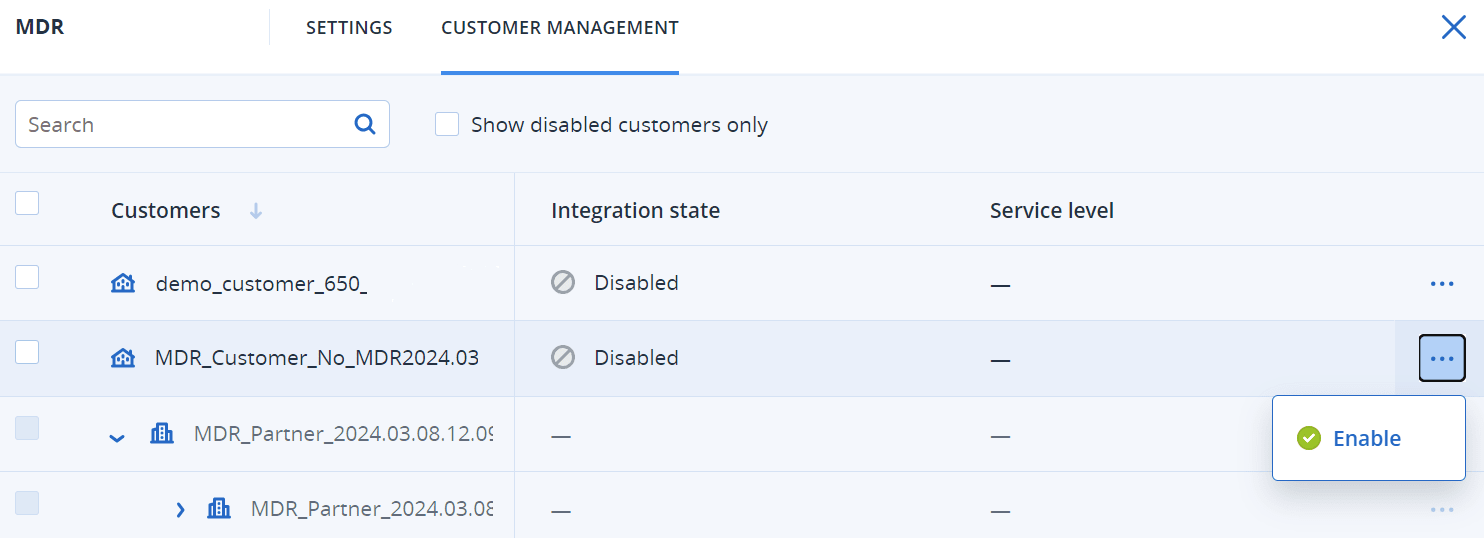
To enable multiple customers, select the checkbox next to the relevant customers, and then click Enable in the top left of the Customer management tab.
- From the Service level drop-down list in the displayed dialog, select the level of MDR service you want to apply to the selected customer(s):
- Standard: Includes 24/7/365 monitoring of customer endpoints to catch attacks, AI-powered event triage and prioritization, threat containment and isolation of affected endpoints, and real-time in-console visibility over a prioritized list of incidents.
- Advanced: In addition to the features included in Standard, this level also enables complete remediation, including attack rollback, recovery and the closing of security gaps.
-
Click Enable to complete the MDR integration.
If the Login control feature is enabled for the customer, you are prompted to add the MDR vendor's IPs to the allowlist. This ensures that the vendor can monitor the relevant workloads. Click Enable to confirm. See Limiting access.
MDR is now enabled and security incidents will be forwarded to the MDR vendor to conduct investigation and response activities. For further information about the MDR service, see What is Managed Detection and Response (MDR)?