Installing the management server in Windows
To install the management server
- Log on as an administrator and start the Acronis Cyber Protect setup program.
- [Optional] To change the language of the setup program, click Setup language.
- Accept the terms of the license agreement and the privacy statement, and then click Proceed.
-
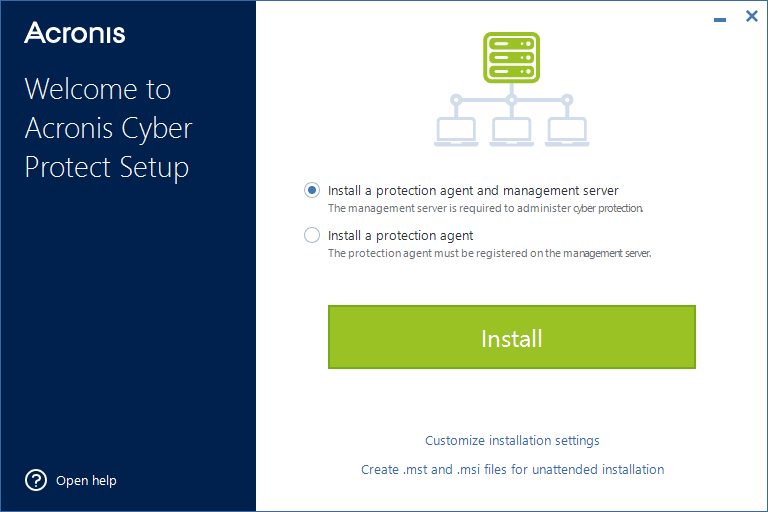
Leave the default setting Install a protection agent and management server.
-
Do any of the following:
-
Click Install.
This is the easiest way to install the product. Most of the installation parameters will be set to their default values.
The following components will be installed:
- Management Server
- Components for Remote Installation
- Agent for Windows
- Other agents (Agent for Hyper-V, Agent for Exchange, Agent for SQL, and Agent for Active Directory), if the respective hypervisor or application is detected on the machine
- Bootable Media Builder
- Command-Line Tool
- Cyber Protect Monitor
-
Click Customize installation settings to configure the setup.
You will be able to select the components to be installed and to specify additional parameters. For details, see Customizing installation settings.
-
Click Create .mst and .msi files for unattended installation to extract the installation packages. Review or modify the installation settings that will be added to the .mst file, and then click Generate. Further steps of this procedure are not required.
If you want to deploy agents through Group Policy, see Deploying protection agents through Group Policy.
-
- Proceed with the installation.
- After the installation completes, click Close.
To start using your management server, activate it by signing in to your Acronis account or through an activation file. See Activating a management server.