How alert automation works
Alert automation is built on the same Workflows that you can create yourself. Workflows follow predefined steps and rules. Alert automation extends them with AI agents that diagnose and fix problems on your behalf.
Alerts are processed by the Alert automation workflow, a workflow template that Acronis provides and maintains. It replaces the separate default alert-to-ticket workflow templates of Service Desk with a single workflow that contains all the logic. The workflow is provisioned and enabled automatically when you enable alert automation, by selecting any automation level except No automation. Selecting No automation turns it off.
How an alert is processed
-
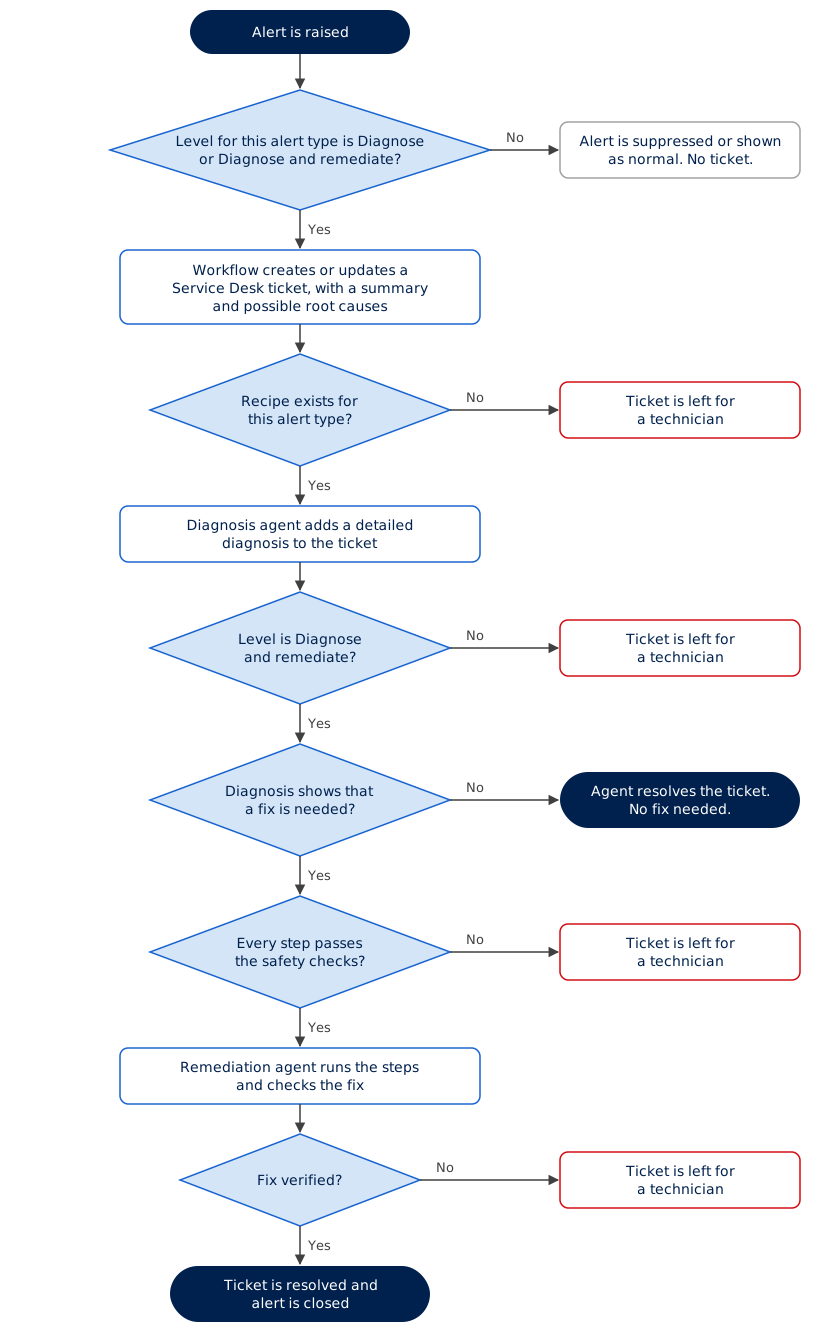
When an alert is raised, the workflow checks your automation settings for its alert type.
- If the alert is set to be suppressed, it is dismissed.
- If the alert is not set to be diagnosed, or the alert type is not supported, the alert is kept and processing stops.
-
The workflow gathers the relevant context, such as the alert details and the affected device, and looks up the Acronis recipe for the alert type. A recipe contains the diagnosis guidance, the approved tools, and the approved fix steps for that alert.
-
The workflow creates a Service Desk ticket for the alert. As for any new ticket, Service Desk adds an AI-generated problem summary and possible root causes. Related alerts are grouped, and duplicate tickets are prevented in the same way as for other alert tickets. For more information, see Alert-to-ticket automation.
-
If a recipe exists for the alert type, the alert diagnosis agent investigates the alert, and writes a detailed diagnosis into the ticket. The agent only reads information, and does not change anything. If no recipe exists, the ticket keeps the problem summary and possible root causes, and the alert is never fixed automatically.
-
If the alert is set to be diagnosed and remediated, the alert remediation agent takes over:
- If the diagnosis shows that no fix is needed, for example because a backup failed but a recent backup already exists within the policy window, the agent resolves the ticket.
- If a fix is needed, the workflow checks every step of the resolution plan before anything runs. If all the steps pass, the agent runs them in order, and then checks that the problem is fixed.
-
If the fix is verified, the ticket is resolved and the alert is closed, with everything that the agents did recorded on the ticket. Otherwise, the ticket stays open for a technician, with the diagnosis, the steps that were completed, and the steps that remain.
For information about what is recorded on the ticket, see AI diagnosis on tickets.
Safety checks
Whether a fix runs automatically is decided by fixed rules, not by the AI agent. Fixes that need potentially risky actions on a device are left for a technician to review, so that a person stays in control. Before any step runs, the workflow checks that:
- Your settings allow remediation for the alert type.
- A recipe exists for the alert, and the recipe allows the step.
- The risk level that Acronis has assigned to the command or action is permitted.
If any step in the plan does not pass these checks, no steps run automatically, and the whole plan is left for a technician. The same rules are also enforced by the tool that runs the command.
Recipes and risk levels are managed by Acronis and cannot be edited. Your settings can reduce the amount of automation, but cannot allow more than Acronis supports.
The system workflow
The Alert automation workflow appears in the workflow list. To see it, go to Automation > Cyber Studio > Workflows, and turn on Show system workflows. You cannot edit or delete it, and you do not need to enable it yourself.
Do not clone the Alert automation workflow. Cloning cannot currently be prevented, but if a cloned copy is enabled, both workflows can process the same alerts, which can create duplicate processing.