Assigning workflows
You can view and assign the currently activated workflows for a selected tenant or customer in the Clients tab. When you assign a workflow, it is automatically set as Enabled for the selected customer tenant users.
For schedule-based workflows, the Clients tab also displays a Next execution column showing the date and time when the workflow will next run for each assigned tenant.
To assign workflows to selected tenants or customers
-
Go to Automation > Cyber Studio > Workflows.
-
Click the relevant workflow.
-
Select the Clients tab.
-
Click the Manage clients link.
If you have not yet configured access to your clients, you are prompted to click a separate Manage clients button.
-
Select the My company option to expand the list of available customer tenants, and then select the tenants you want to set workflow versions for.
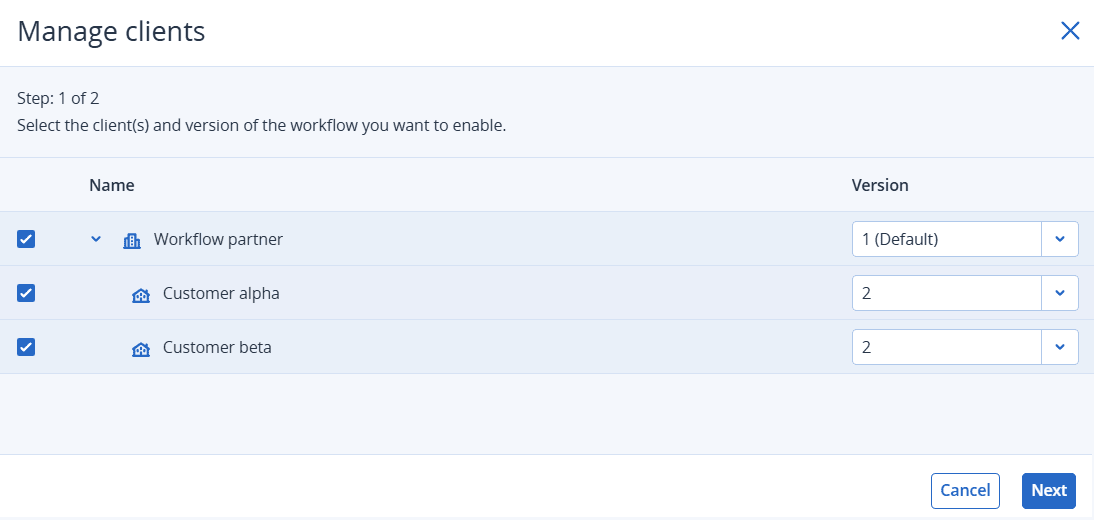
-
In the Version column, select the relevant workflow version that you want to assign to each customer tenant.
The selected workflow version is the only available version displayed to the customer tenant, and they cannot access any other versions.
-
Click Next.
-
Verify the selected versions and tenants, and click Save.
The selected workflow versions are now available for each customer tenant when they access the main Workflows screen. The workflow versions are automatically set as Enabled.