Creating a dynamic group
You create a dynamic group by searching for workloads that have specific attributes whose values you define in a search query. Then you save the search results as a dynamic group.
The attributes that are supported for searching and creating dynamic groups differ for cloud-to-cloud workloads and non-cloud-to-cloud workloads. For more information on supported attributes, see Search attributes for non-cloud-to-cloud workloads and Search attributes for cloud-to-cloud workloads.
Dynamic groups are created in their respective root groups. Nested dynamic groups are not supported.
You cannot create device groups within any All-type group, such as the root group All devices, or built-in groups like Machines with agents > All, Microsoft 365 > your organization > Users > All users.
To create a dynamic group
Non-cloud-to-cloud workloads
-
Click Devices, and then select the group that contains the workloads for which you want to create a new dynamic group.
-
Search for workloads by using the supported search attributes and operators.
You can use multiple attributes and operators in a single query. For more information about the supported attributes, see Search attributes for non-cloud-to-cloud workloads.
-
Click Save as next to the search field.
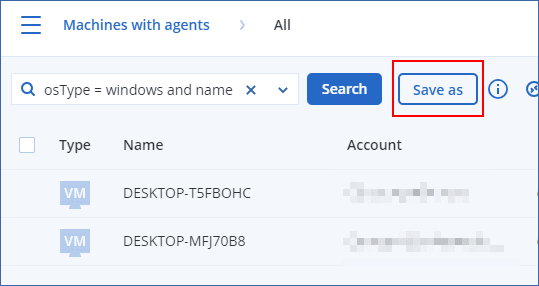
The Save as button is not available when you are not allowed to create a dynamic group on a specific level.For example, in the root group Devices > All devices.
Select another level (for example, Devices > Machines with agents > All), and then repeat the steps above. With this search, you can create a dynamic group within Machines with agents, and not within Machines with agents > All.
- Specify a name for the new group.
-
In the Comment field, add a description for the new group.
- Click OK.
Cloud-to-cloud workloads
-
Click Devices, and then select Microsoft 365 or Google Workspace.
- Select the group that contains the workloads for which you want to create a new dynamic group. For example, Users > All users.
-
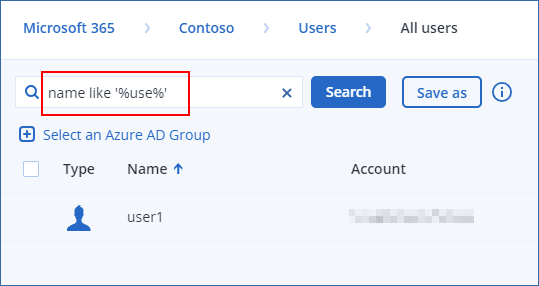
Search for workloads by using the supported search attributes and operators or by selecting Microsoft 365 users from a specific Active Directory group.
You can use multiple attributes and operators in a single query. For more information about the supported attributes, see Search attributes for cloud-to-cloud workloads.
-
[Only for Microsoft 365 > Users] To select users from a specific Active Directory group, do the following:
-
Navigate to Users > All users.
-
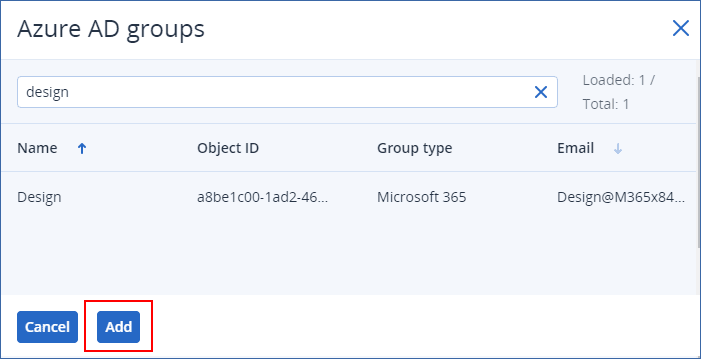
Click Select an Azure AD Group.
A list of the Active Directory groups in your organization opens.
In this list, you can search for a specific group or sort the groups by name or email.
-
Select the Active Directory group that you want, and then click Add.
-
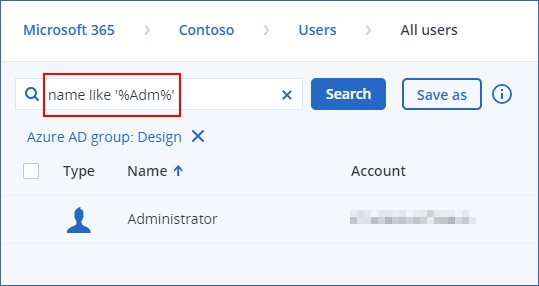
To include or exclude specific users from the selected Active Directory group, create a search query by using the supported search attributes and operators.
You can use multiple attributes and operators in a single query. For more information about the supported attributes, see Search attributes for cloud-to-cloud workloads.
-
-
Click Save as next to the search field.
The Save as button is not available when you are not allowed to create a dynamic group on a specific level. For example, in Microsoft 365 > your organization > Users.
Select another level (for example, Microsoft 365 > your organization > Users > All), and then repeat the steps above. With this search, you can create a dynamic group within Microsoft 365 > your organization > Users >, and not within Users > All.
- Specify a name for the new group.
-
In the Comment field, add a description for the new group.
- Click OK.