Define response actions for a suspicious file
As part of your remediation response to an attack, you can apply the following actions to suspicious files:
- Delete a file (see below)
- Quarantine a file (see below)
- Add the file to a protection plan allowlist or blocklist (see Add or remove a process, file or network in the protection plan blocklist or allowlist)
To delete a suspicious file
- In the cyber kill chain, click the file node you want to remediate.
- In the displayed sidebar, click the Response Actions tab.
-
In the Remediate section, click Delete.
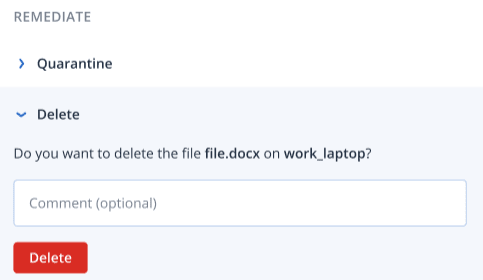
- Add a comment.
This comment is visible in the History of Actions tab (for a specific node) or the Incident Activities tab (for the entire incident), and can help you (or your colleagues) recall why you took the action when you revisit the incident.
-
Click Delete.
The file is deleted. This action can also be viewed in the History of Actions tab (for the specific node) and the Incident Activities tab (for the entire incident). For more information, see Understand the actions taken to mitigate an incident.
To quarantine a suspicious file
- In the cyber kill chain, click the file node you want to remediate.
- In the displayed sidebar, go to Response Actions.
-
In the Remediate section, click Quarantine.
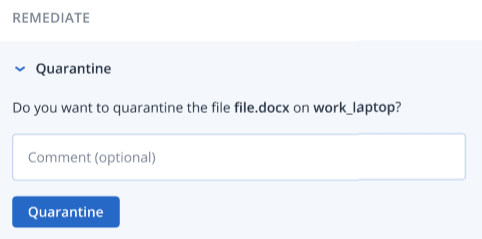
- Add a comment.
This comment is visible in the History of Actions tab (for a specific node) or the Incident Activities tab (for the entire incident), and can help you (or your colleagues) recall why you took the action when you revisit the incident.
-
Click Quarantine.
The file is quarantined. This action can also be viewed in the History of Actions tab (for the specific node) and the Incident Activities tab (for the entire incident). For more information, see Understand the actions taken to mitigate an incident.