Customer mapping
After the onboarding of Microsoft 365 tenants in Cyber Protect Cloud is completed, you can map the Microsoft 365 tenants associated with that account to customers in Cyber Protect Cloud.
To map Microsoft 365 tenants to customers
-
In the Cyber Protect console, go to Microsoft 365 management > Configuration.
-
In the Customer mapping tab, select the relevant Microsoft 365 tenant(s), and then click Map to existing customer.
-
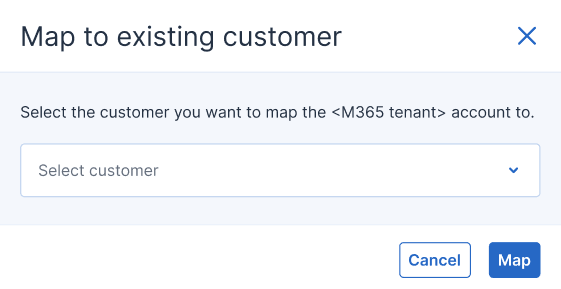
Select the relevant customer from the dropdown, and click Map.
When the customer is successfully mapped:
-
 is shown in the Mapping status column in the Customer mapping tab.
 -
The system applies the predefined tenant baselines to the customer tenant. For more information, see Working with baselines.
-
Security posture monitoring starts and runs for the customer tenant. For more information, see Reviewing security posture.
-
To remove the mapping between Microsoft 365 tenants and customers
-
In the Customer mapping tab, select the relevant Microsoft 365 tenant(s), and then click Remove mapping.
-
In the confirmation dialog, click Remove.
If you are connected to a Microsoft CSP account, the mapping between the selected tenant and Cyber Protect Cloud customer is removed. The tenant remains listed in the Customer mapping tab, with the status Not mapped.
If you are connected to a regular Microsoft account, the mapping between the selected tenant and Cyber Protect Cloud customer is removed, and the Acronis application is also removed from the App registrations directory in the customer's Microsoft Entra ID account. The tenant is removed from the Customer mapping tab.
When mapping is removed, the Microsoft 365 security monitoring and management service is automatically disabled for the selected customer(s).