Customer provisioning
In the Customer mapping > Customer provisioning section, you configure the parameters required to create new Acronis customer tenants and user accounts.
To configure customer provisioning
Company administrator
Custom role with 'Manage integrations' permission or 'Configure integration settings' permission
-
Select the INTEGRATION SETTINGS tab.
-
Scroll down to the Customer mapping > Customer provisioning section, and click
 .
-
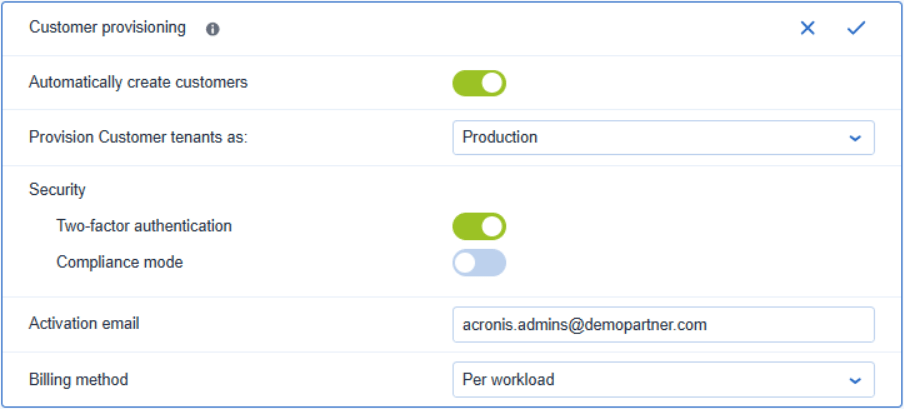
Turn the Automatically create customers toggle switch on or off.
If you enable this feature, newly created NinjaOne organizations are automatically provisioned and mapped in Acronis.
By default, customers are provisioned in Acronis Managed by service provider mode, with the same services enabled as for the service provider and with all quotas set to unlimited.Make sure that you have mapped NinjaOne organizations which are already registered as Acronis customer tenants. Otherwise, these customers will be duplicated after enabling automatic customer provisioning.
-
Select the Provision customer tenants as setting from the dropdown list:
-
Production (default)
-
Trial
Customers in trial mode have full access to all integration functionality for the duration of the trial.
They are automatically switched to production mode after 30 days.
-
-
Turn the Two-factor authentication toggle switch on or off.
If turned on, new customer tenants are provisioned with two-factor authentication.
For more information, see the Management Portal Partner Administrator guide. -
Turn the Compliance mode toggle switch on or off.
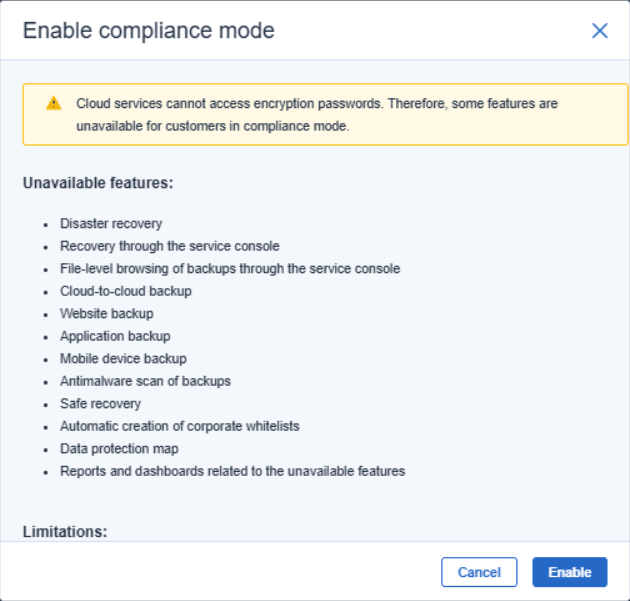
Compliance mode is designed for higher security demands. It requires mandatory encryption for all backups and allows only locally set encryption passwords.
For more information, see the Management Portal Partner Administrator guide.If you enable compliance mode, carefully review the information presented, then click Enable.
-
Enter an Administration email.
This is the administrator user email for provisioned Acronis customers.
Administrator user activation links are sent to this email address. The user must be activated. -
Select the Billing method from the dropdown list:
-
Solution-based (per workload) (default)
Billed per workload. Simplified licensing through service bundles that address the most common needs of protection services: Security and RMM, Backup and Disaster Recovery, and Ultimate Protection (includes security, RMM, backup, disaster recovery, and more). You can extend the bundles with additional services.
-
Service-based (per workload)
Billed per workload. Allows more granular control of the offering items that are available on the protected workload. The license consists of a Standard Protection service that can be extended with additional protection services. Used cloud storage is billed separately.
-
Service-based (per gigabyte)
Billed per used cloud and local storage. Provides the same feature set as the Service-based (per workload) license.
Solution-based (per workload) is the default billing method for newly enabled integrations. If the integration was enabled before this option was available, its billing method does not change.
-
-
Click
 .