Re-opening NinjaOne tickets
When an Acronis alert is raised again on the same device within a certain amount of time, the integration can either:
-
Create a new NinjaOne ticket (default behavior).
-
Re-open the previously closed NinjaOne ticket.
-
Re-open the previously closed NinjaOne ticket only if the Acronis alert reoccurs within a specific time frame after the previous NinjaOne ticket was closed.
To change re-opening tickets settings
Company administrator
Custom role with 'Manage integrations' permission or 'Configure integration settings' permission
-
Select the INTEGRATION SETTINGS tab.
-
Scroll down to the Ticket mapping > Re-opening tickets.
This option is only available if Ticket mapping is enabled.
If Ticket mapping is disabled, enable it by turning on the toggle switch.
You must have at least one ticket type in NinjaOne. Otherwise, an error will occur when you enable ticket mapping.
-
Click
 .
-
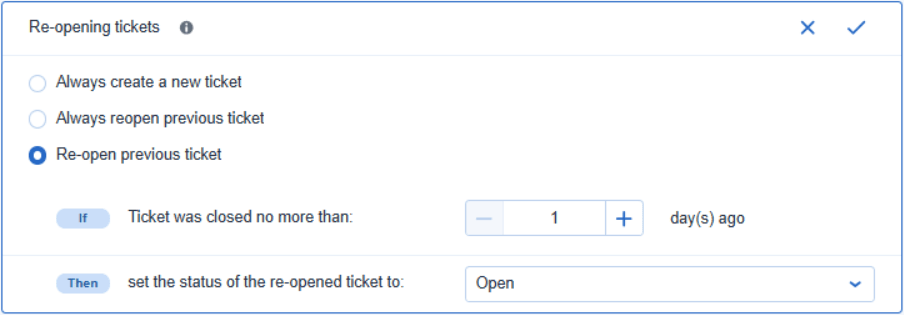
Select the Always create a new ticket, Always re-open previous ticket or Re-open previous ticket radio button.
-
[If you selected Re-open previous ticket] Specify the maximum number of days to have passed since the previous NinjaOne ticket closed in the Ticket was closed no more than number counter.
(the maximum is 365 days)
-
[If you selected either of the reopen options] Specify the status of the NinjaOne ticket after reopening.
-
Click
 .