Setting up the NinjaOne PSA integration
Dokumentasi PSA belum diterjemahkan ke bahasa Anda. Kami mohon maaf atas ketidaknyamanan ini.
There are two main steps in setting up your NinjaOne integration with PSA, as described in the procedures below:
- Defining the integration settings to connect with the NinjaOne instance.
- Mapping NinjaOne customers to PSA.
To define integration settings
- Go to Integrations, and then select Management > Remote Monitoring and Management.
- Hover over the NinjaOne catalog card and click Configure.
-
Enter the relevant NinjaOne credentials to access the NinjaOne instance. For more information, see here.
NinjaOne supports OAuth 2.0 authentication, which is applicable for all new integrations. If you have an integration that was set up with an Access Key ID and Secret Access Key, it needs to be updated manually. - After the credentials have been defined, the next step in setting up your integration is to map the NinjaOne customers with existing or new PSA customers, as described below.
- Go to Integrations, and then select Management > Remote Monitoring and Management.
- On the NinjaOne catalog card, click Manage.
-
In the Customer mapping tab, click Create Acronis customers from NinjaOne sites.
The mapping process is started for all the listed NinjaOne sites.
All customers (customer sites) from NinjaOne are registered as new customers in Management Portal, complete with all available services granted.
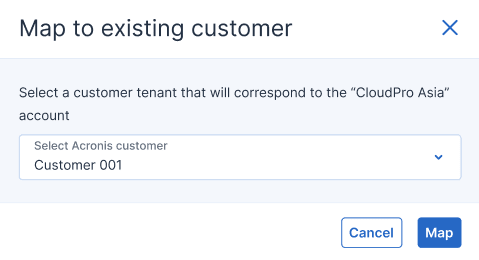
You can also select individual NinjaOne sites and map them to existing Management Portal customers; select the relevant site(s), and then click Map to existing customer tenant. You are then prompted to select an existing customer. Once selected, click Map to complete the mapping process.
-
When complete, the Mapping column displays Mapped, and the Acronis customer column displays the relevant customer name.