Depending on your Internet connection speed, disk recovery from Acronis Cloud may take a long time.
After you have performed the steps described in Preparing for recovery, begin the system recovery procedure. Here we explain how to recover a corrupted system from an image stored on Acronis Cloud. In our example we recover it to the same hard disk. System recovery to a replaced hard disk drive is similar with some minor differences. You do not need to format the new disk, as this is done in the process of recovery.
Before starting the procedure, please make sure your computer is connected to the Internet by an Ethernet cable. Note that recovery from Acronis Cloud cannot be performed over Wi-Fi.
To recover a system disk from Acronis Cloud:
Arrange the boot order in BIOS so as to make your rescue media device (CD, DVD or USB stick) the first boot device. See Arranging boot order in BIOS.
Boot from the rescue media and select True Image.
On the Home screen, select My disks below Recover.
To add the online backup of the system disk or system partition to the list of available backups, click Browse.
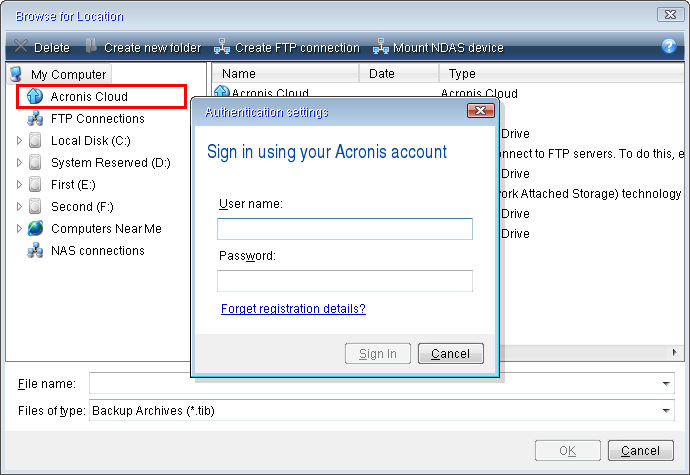
In the directory tree of the opened window, select Acronis Cloud and enter credentials of your Acronis account.
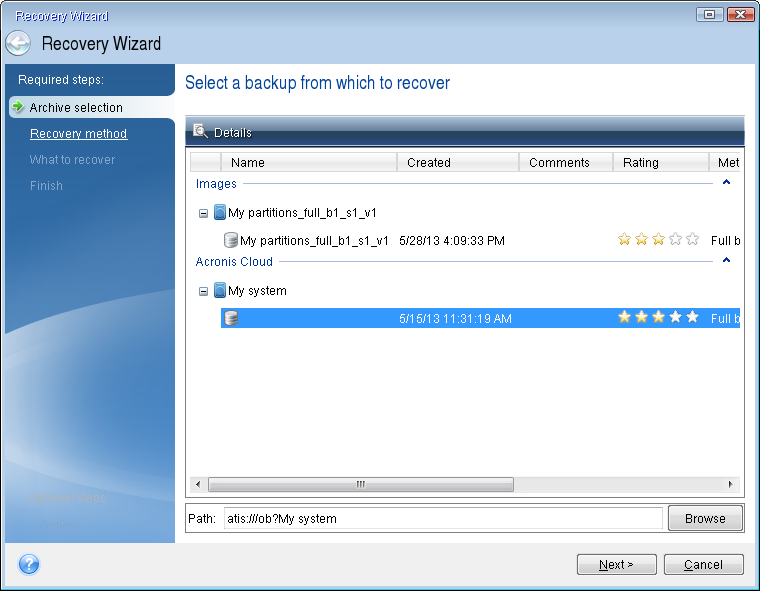
Select the backup you want to use for recovery, and click OK.
On the Archive selection step, select the online backup and click Next.
On the Recovery method step, select Recover whole disks and partitions.
Select the system partition (usually C) on the What to recover screen. If the system partition has a different letter, select the partition using the Flags column. It must have the Pri, Act flags.
In case of Windows 7 the System Reserved partition will have the Pri, Act flags. You will need to select for recovery both the System Reserved partition and the System partition.
On the "Settings of partition C" (or the letter of the system partition, if it is different) step check the default settings and click Next if they are correct. Otherwise, change the settings as required before clicking Next. You need to change settings when recovering to the new hard disk of a different capacity.
Carefully read the summary of operations at the Finish step. If you have not resized the partition, the sizes in the Deleting partition and Recovering partition items must match. Click Proceed.
When recovery is complete, exit the standalone version of Acronis True Image 2014, remove the rescue media. Boot from the recovered system partition. After you check that you have recovered Windows to the state you need, restore the original boot order.