Nonstop backup retention rules
When you back up files and folders to Acronis Cloud, you can select the Nonstop scheduling setting. Refer to Scheduling for details.
Because Acronis True Image 2021 permanently monitors the backed-up data and uploads the changes to Acronis Cloud, the backup could consume storage space quite fast. To reduce the number of backup versions and optimize the cloud space consumption, Acronis True Image 2021 keeps only the following backup versions:
All other versions are automatically deleted. The retention rules are pre-set and cannot be changed.
Replica retention rules
Every time you run a backup operation that has replication turned on, Acronis True Image 2021 creates a new backup version locally and a new replica version in the cloud. Sometimes the number of replica versions is slightly less that the number of the backup versions; that is done to optimize your Internet usage. Nevertheless, the replicas may take quite a lot of space.
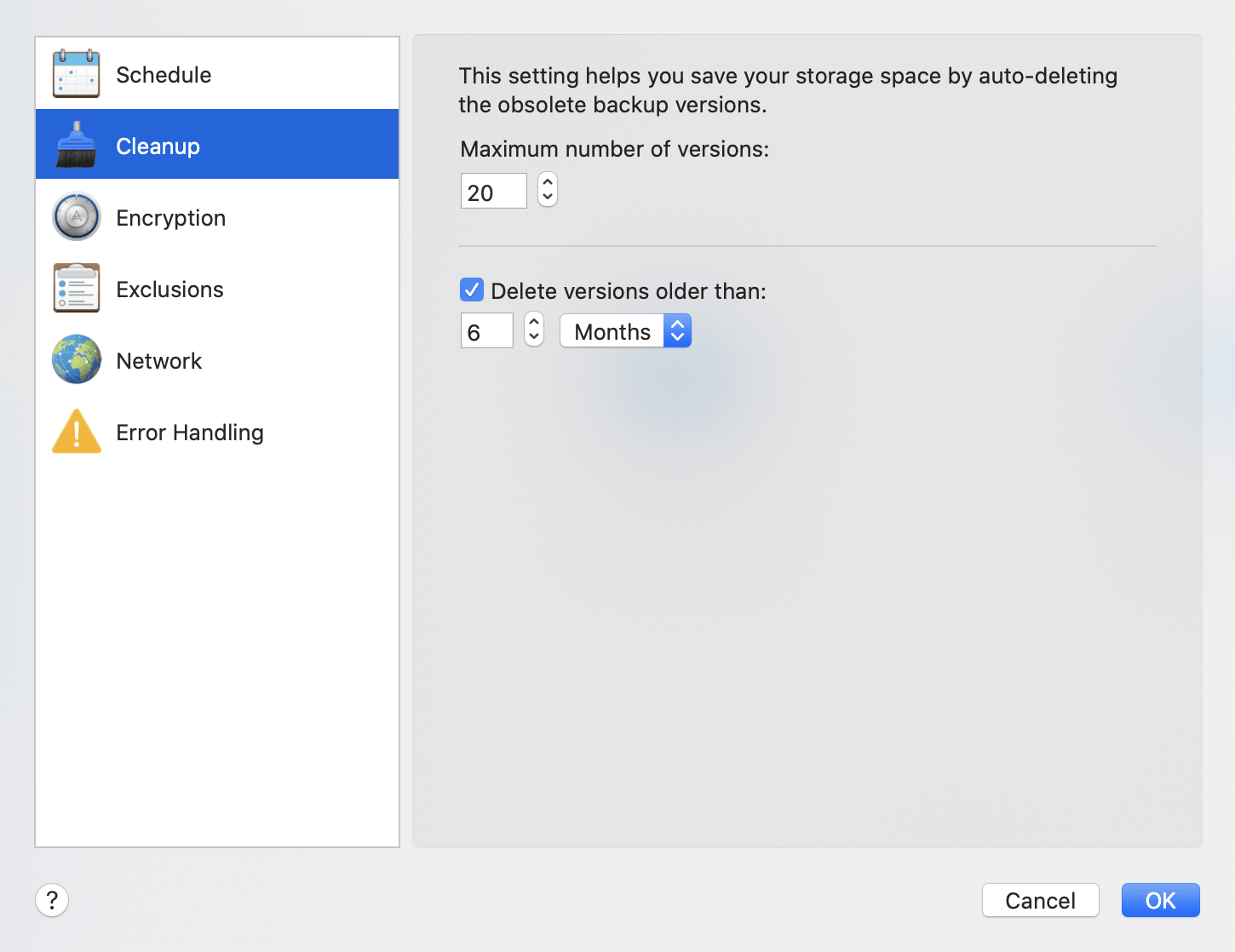
To save space, use the replica retention rules:
You can set a limit on the number of replica versions. In addition to the number of replicas, you can limit their age. Select the Delete versions older than check box, and then specify how long to store a version. All versions that are older than the specified period will be automatically deleted.
Deleting an entire backup and its replica
In the Backup section, right-click the backup with the replica to delete, and then click Delete backup and replica.
Depending on the backup type, this command completely deletes the backup from its location, or allows you to choose whether you want to delete the backup completely or delete the backup box only. When you delete a backup box only, the backup files remain in the location and you will be able to add the backup to the list later. Note that if you delete a backup completely, the deletion cannot be undone.
When you delete a backup, its replica is deleted automatically. You cannot delete a local backup and still save its replica. However, you can delete a replica alone and keep the corresponding local backup.
To delete a replica without deleting the backup, in the Backup section, right-click the backup with the replica to delete, and then click Delete replica only.
Cleaning up backup versions manually
When you want to delete backup versions that you no longer need, use the tools provided in the application. If you delete backup version files outside Acronis True Image 2021, for example in File Explorer, this will result in errors during operations with the backups.
Versions of the following backups cannot be deleted manually:
To clean up specific backup versions:
Be careful! Deleted versions cannot be restored.
One more way to clean up is to delete a cloud backup that you no longer need. In this case, all version history for the backup is deleted from Acronis Cloud.