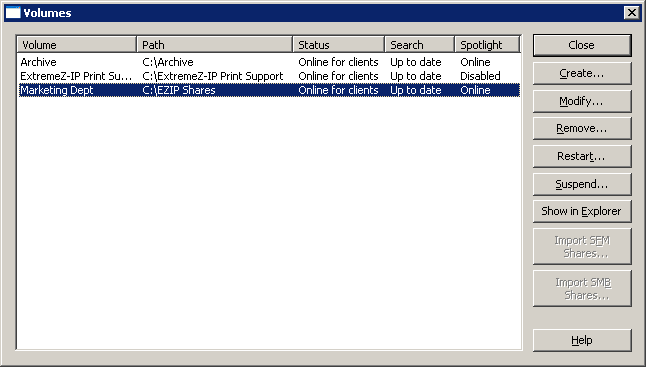
Each time you reopen the Volumes window, Access Connect checks for any SFM or SMB volumes that are not currently shared as Access Connect volumes. If such volumes are found, the appropriate Migrate button is enabled.
Enabled only when there are new SFM or SMB shares available. When you click Migrate SFM Shares, you are asked to verify that you want to migrate the shares and disable SFM.

When you click Migrate SMB Shares, you are asked to verify that you want to migrate the shares.

If you follow this procedure, preexisting SFM and SMB shares will become available as Access Connect volumes. This procedure is the same as that used the first time you launch Access Connect (see the Launching Access Connect For the First Time article).
Because someone could add or remove volumes to either the SFM or SMB service at any time, when you reopen the Volumes window, note the state of the Migrate buttons. If they are dimmed (disabled), no new SFM/SMB volumes have been added. If one of the corresponding Access Connect volumes is removed, the button is enabled.
Note: This button updates only when the Volumes window is opened. Changes occurring to SMB/SFM shares have no effect on the button state while the Volumes window remains opened.