Access Mobile Clients connect directly to your server rather than utilizing a third-party service, leaving you in control. Acronis Access server can be installed on existing file servers, allowing iPads, iPhones and Android devices to access files located on that server. These are typically the same files already available to PCs using Windows file sharing and Macs using ExtremeZ-IP File Server.
Clients access Acronis Access servers using their Active Directory user account. No additional accounts need to be configured within Acronis Access. The Access Mobile Client also supports file access using local computer accounts configured on the Windows server Acronis Access is running on, in the event you need to give access to non-AD users. The client management features described below require AD user accounts.
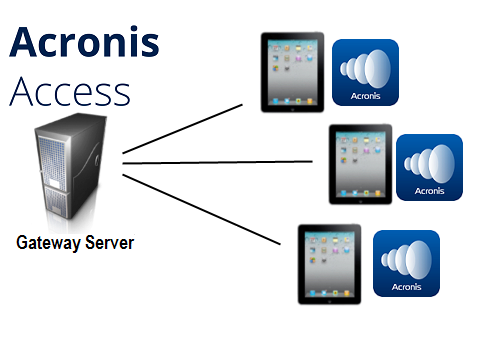
The deployment consists of a single Windows server running an installation of Acronis Access. This includes the Acronis Access Server component installed and the Acronis Access Gateway Server installed. This scenario allows devices running the Access Mobile Client application to connect to this single file server, and allows for client management.
If client management is not needed, Data Sources can be setup on the local Gateway Server and the Access Mobile Clients will be able to access these Data Sources. Each user will be in control of his own app settings.
Fig 1. Single Gateway server, many Access Mobile Clients
Note: Details on installing Acronis Access are included in the Installing section of this guide. The configuration of Data Sources is explained in the Mobile Access section.
If you wish to remotely manage your Access Mobile Clients, Acronis Access allows you to use a group policy. This policy can:
Only one Acronis Access Server is allowed.
A typical network employing client management includes one server with the Acronis Access Server and Acronis Access Gateway Server components installed. In this scenario, all mobile clients are managed by the Acronis Access Server, and will contact this server each time the Acronis Access application is started, to check for any changed settings and to accept application lock password resets and remote wipe commands if necessary.
Acronis Access clients can be assigned a list of servers, specific folders within shared volumes, and home directories in their management policy. These resources will automatically appear in the Acronis Access app and the client app will contact these servers directly as needed for file access.
Note: Details on enabling and configuring the client management are included in the Policies and Managing Mobile Devices section of this guide.