Adding a new PSA time registration
By manually adding a new time registration you can log the time spent working on tickets. This enables you to see what engineers are spending their time on, and, combined with other PSA metrics and reports, determine the relevant resources required for specific projects.
To add a new PSA time registration
-
Go to Task management > Time entries.
The Time registration tab opens.
-
Click + New.
The following dialog appears.
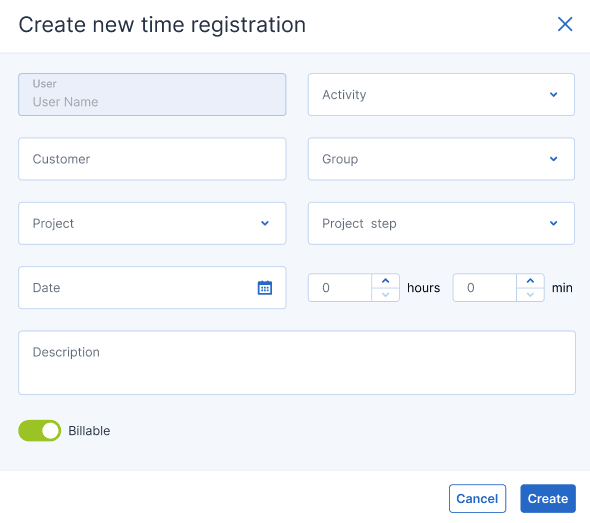 When PSA is activated for your account, you can also click New > Time registration from the Management Portal toolbar at the top of the screen, even when you are not in the Time entries module. This option automatically opens the Create new time registration dialog via which you can create a time registration, as described in the following steps.
 - Define the following:
- Activity: Select the relevant activity from the Activity dropdown list. For more information about activities, see PSA time-tracking activities.
- Customer: Select the relevant customer from the Customer dropdown list. You can select your own organization, which will make this entry not billable. To register work for a specific client, enter the client name.
- Group: Select the relevant group (the department you are making the registration for) from the Group dropdown list. Only groups in which you are included are available.
- Project: Select the relevant project from the Project dropdown list. This option is only available if you are assigned to a project team.
- Project step: Select the relevant project step from the Project step dropdown list. This option is only available if you are assigned to a project team and steps in the project are not closed.
- Date: Define the relevant date.
- Time period: Define the length of the time registration (in hours and minutes).
- Description: Enter a description for the activity.
Billable: Click the Billable option switch to register this activity as billable. This option is only available if you have selected a customer.
When creating a new time registration, the User field is automatically filled with your name.
- Click Create.