Uploading integration scripts to NinjaOne
To run, some scripts need the Acronis datacenter URL, a registration token that identifies the Acronis customer tenant and protection plan (if selected), or both.
For the Acronis_install_agent script, the integration can supply these values automatically through NinjaOne custom fields. For more information, see Creating custom fields for agent installation.
To upload integration scripts to NinjaOne
-
Sign in to NinjaOne.
-
Select
 .
-
Select Library > Automation.
-
Click + Add > Import from file.
-
Locate folder to which you unzipped the downloaded script packages.
-
Select one of the script files to upload and click Open.
Whereas Windows follows the original convention of a carriage return plus a line feed (CRLF) for line endings, operating systems like Linux and Mac use only the line feed (LF) character. In order to prevent issues when running the script, avoid copying/pasting scripts to NinjaOne. Instead, import the scripts through the NinjaOne interface, the way they have been downloaded from the Acronis console or drag and drop the files.
-
Enter a Name for the script.
-
Enter a Description.
-
Select one or more Categories from the dropdown list.
-
Select the Language from the dropdown list (PowerShell for Windows and ShellScript for Linux).
-
Select the Operating System from the dropdown list.
-
Select the Architecture from the dropdown list.
We recommend All.
-
Create parameters for the scripts as follows:
Acronis_install_agent
If you created the custom fields for agent installation, you do not need to add a parameter. The script uses the values that the integration stores in the custom fields.
If you did not create the custom fields, enter the Acronis datacenter URL, followed by a blank space, followed by the Acronis registration token.
For more information, see Generating a registration token.
You can use the optional Protection Plan value with this script to apply the selected protection plan.
The parameter should look something like this:
https://eu8.acronis.cloud 79AE-07AD-440C.
Click Add.
If you use the script parameter, the script applies only to devices of the customer tenant for which the registration token was generated. To run the script for another customer tenant, update the token parameter, or copy the script and supply a token value for each customer.
Acronis_scans
Add five parameters as follows:
backupav_scanmalware_scanvulnerability_assessmentpatch_management

Acronis_manage_protection_plan
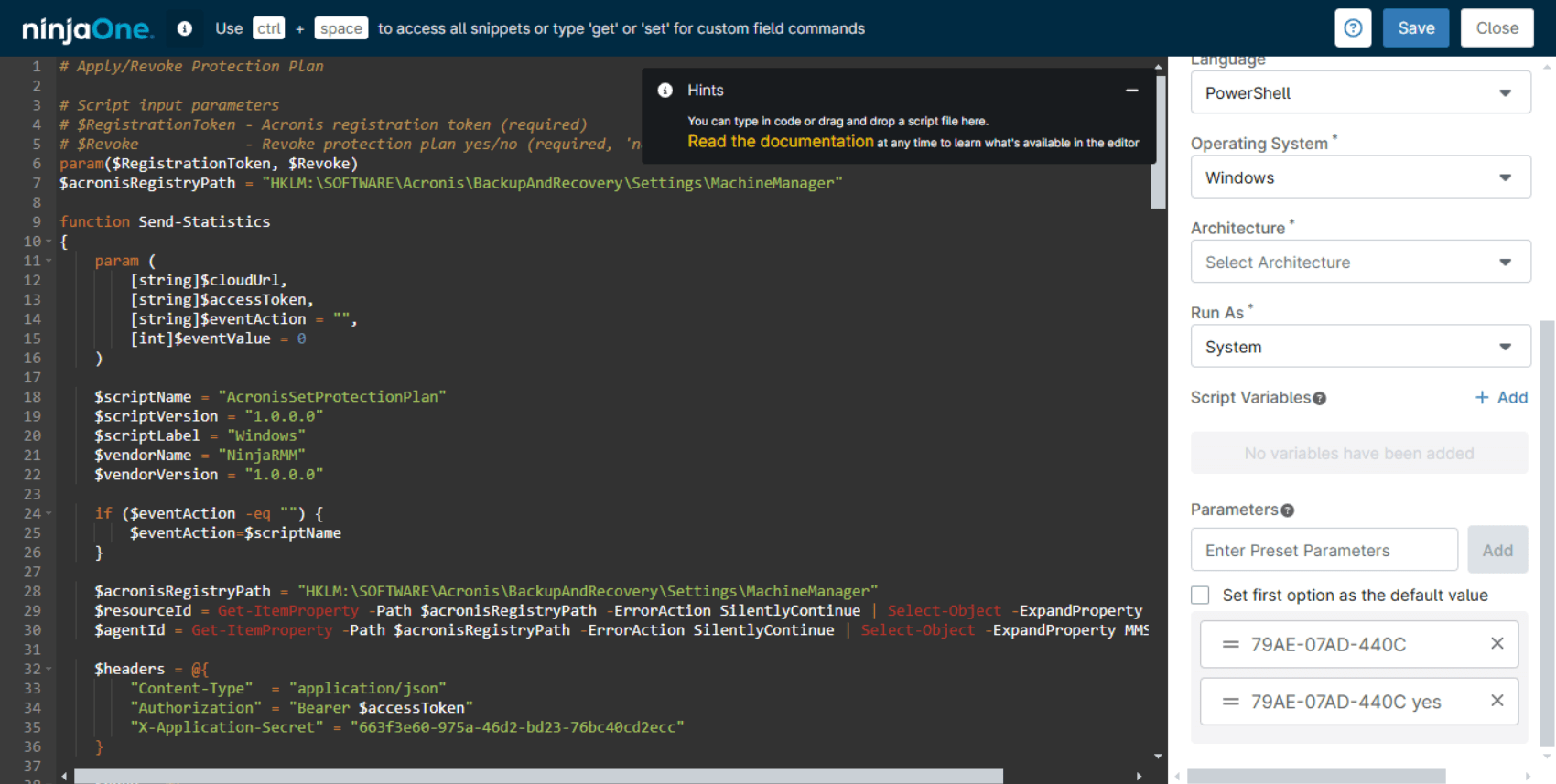
Add two parameters as follows:
-
Acronis registration token.
-
Acronis registration token, followed by a space, followed by
yes.
For more information, see Generating a registration token.
The optional value for Protection Plan can be used in combination with this script to apply the selected protection plan.
Acronis_last_antivirus_scan
(Windows only)
(Windows and MacOs only)
Add one or more (integer) parameters to represent the number of days since the previous antivirus scan event. For example, you could specify options of 1 day, 2 days, 5 days, and 1 week:
-
1
-
2
-
5
-
7
If you do not specify any parameters, the default value is 7.Acronis_last_malware_scan
(Windows and MacOs only)
Add one or more (integer) parameters to represent the number of days since the previous antivirus scan event. For example, you could specify options of 1 day, 2 days, 5 days, and 1 week:
-
1
-
2
-
5
-
7
If you do not specify any parameters, the default value is 7.All other scripts
No parameters are required.
-
Click Save, then Close.
-
Repeat steps 4 to 14 for all the scripts you want to upload.