Before you start a backup, you can reduce the backup size by excluding data that does not need to be backed up.
You can exclude files and folders the following ways:
Manually, from any backup
To exclude an item, specify it explicitly or use a mask.
Automatically, from a backup to Acronis Cloud
Acronis True Image 2016 analyzes the backup source and suggests that you exclude your local data that can be downloaded from third-party Cloud storage.
Excluding items manually
To exclude files and folders manually:
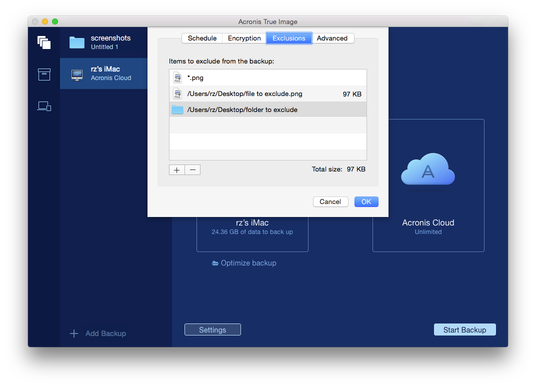
When configuring a backup, click Settings, and then click Exclusions.
Click the Plus sign, and then click one of the following:
Exclude specific file or folder
Browse to the item that you want to exclude, select it, and then click Exclude.
Exclude by mask
Enter an exclusion mask by using wildcard characters (* and ?), and then click Exclude.
Examples of exclusion masks:
*.ext - all files with an .ext extension will be excluded.
??name.ext - all files with an .ext extension, having six letters in their names starting with any two symbols (??) and ending with name, will be excluded.
Click OK.
Excluding recoverable data from online backups
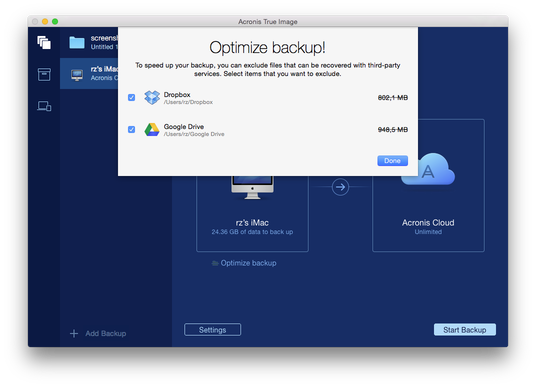
Acronis True Image 2016 allows you to exclude your local data that is uploaded or synchronized with third-party Cloud services, such as Google Drive or Dropbox. This data is already reliably protected and can be easily downloaded to your computer. Therefore there is no need to upload it to Acronis Cloud. You can exclude it to reduce the backup size and to speed up the backup process.
You can exclude data protected with the following services:
iTunes
Dropbox
Microsoft OneDrive
Google Drive
BoxSync
Yandex.Disk
SugarSync
Acronis True Image 2016 suggests that you exclude data only when the following conditions are met:
The third-party service is currently enabled.
There is more than 250 MB of data stored in the corresponding folder.
To exclude items from an online backup:
Before you start the backup process, click Optimize backup below the backup source icon.
Clear the check boxes next to the items that you want to exclude, and then click Done.