Acronis bootable media. If you do not have one and you can start Acronis True Image 2021 on your Mac, please create the media as soon as possible. Refer to Creating Acronis bootable media for details.
To recover your Mac:
Plug in the bootable media to your Mac.
To display the boot menu:
[On an Intel-based Mac] Start or restart your Mac. Press and hold the Option key while the Mac is starting.
[On a Mac with Apple silicon] Shut down your Mac. Press and hold the power button.
Choose Acronis Bootable Media as a device to boot from. The utilities are displayed.
[On an Intel-based Mac] Select Recover from Acronis True Image Backup, and then click Continue.
[On a Mac with Apple silicon] Select Acronis Bootable Media, and then click Restore.
In the window that opens, choose the location of your backup:
Acronis Survival Kit
Local Storage
Acronis Cloud—sign in to your Acronis account.
Network
Select your backup, and then click Open.
From the list, select the backup version from which you want to recover your Mac, and then click Next. The contents of the version are displayed.
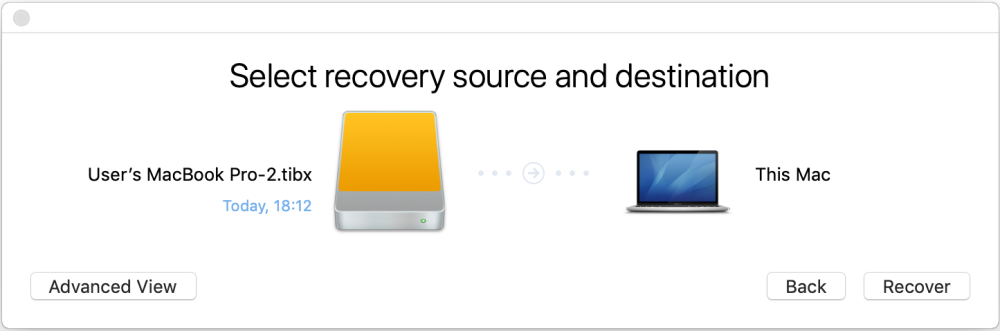
Select the check boxes next to the partitions that you want to recover. Select a destination for each partition.
Note: If Acronis True Image automatically determines a destination for each partition in the backup, the simplified view appears. You cannot make changes in this mode. If you need to select partitions manually, click the Advanced View button.
To start recovery, click Recover, and then confirm that you want to erase all data on the destination partitions.
[For Big Sur] When prompted, click Restore Data if you only need to restore data on an unbootable data volume. Click Restore with Reboot if you need a bootable volume with macOS installed. Note that it requires internet connection.
[Except Big Sur] When recovery is complete, restart your Mac.