Backing up to Acronis Cloud
- Open Acronis True Image.
-
Perform one of the following:
- If this is your first backup, skip this step.
-
If you already have a backup and you want to create a new one, click the plus sign at the bottom of the backup list.
To delete a backup, right-click it, and then click Delete. The backup will be removed from the list and the backup files will be permanently deleted from the backup storage. These files cannot be ever recovered.
-
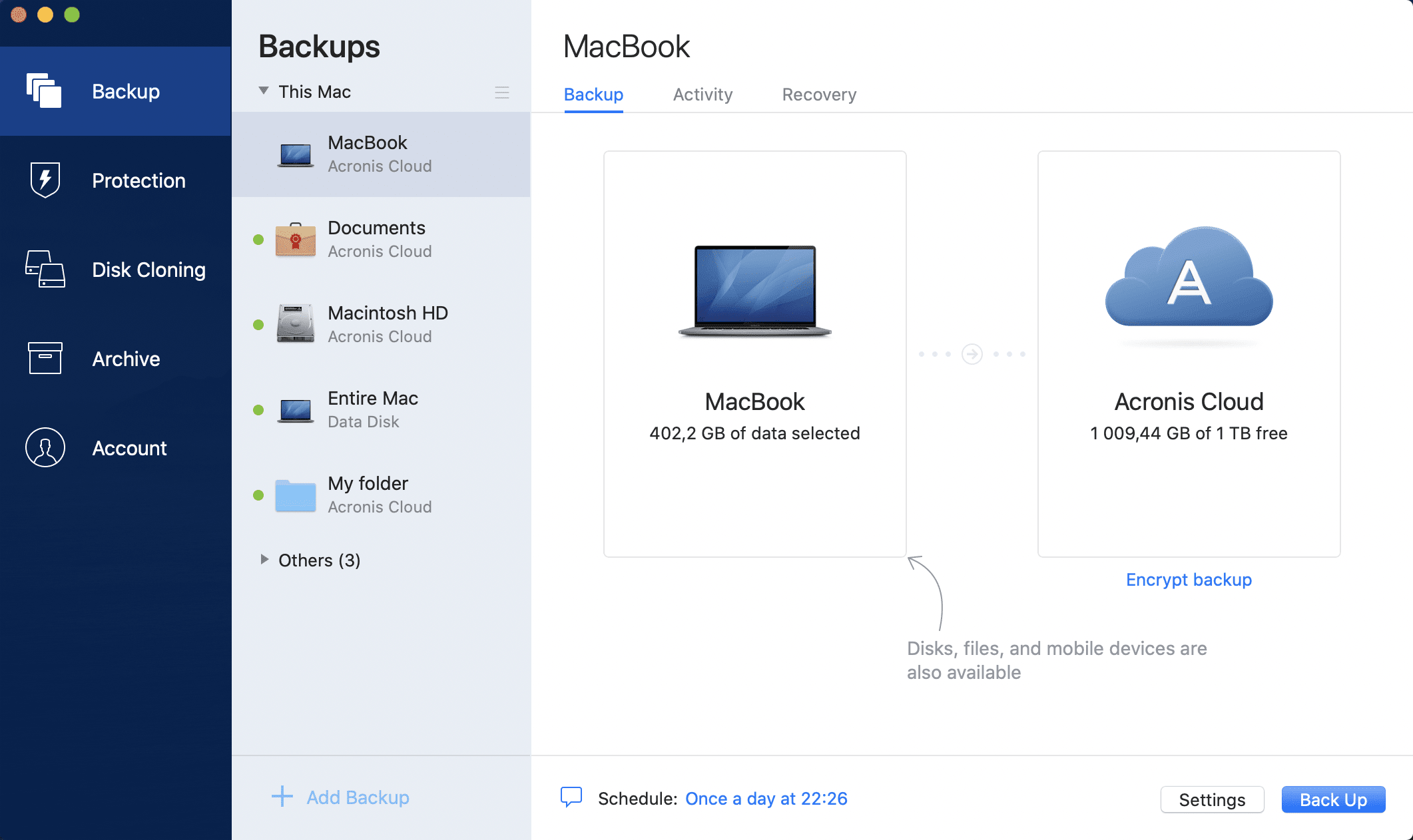
Click the backup source icon, and then select what you want to back up:
-
Entire Mac
When you select this option, Acronis True Image backs up all your internal hard drives in disk mode. The backup contains the operating system, installed programs, system settings, and all your personal data including your photos, music, and documents.
- Disks
-
Files and folders
To back up data that is synced to the cloud by a third-party cloud service provider, the actual data must be stored locally. If the files or folders are stored in the cloud, you will see only their local placeholders. Placeholders often have a cloud icon and are also considerably smaller in size. When you select source files for backup, you must select the local files, and not the placeholders. If the cloud service does not store your data locally, it cannot be backed up and recovered.
-
Mobile device
See Backing up mobile devices for details.
-
Cloud service
Used to back up Microsoft 365 data.
-
Files to notarize
See Notarized backup for details.
-
NAS device (if any connected)
-
-
Click the backup destination icon, select Acronis Cloud, and then click OK.
If you are not signed in yet, enter the email address and password of your Acronis account, and then click Sign In.
If you do not have an Acronis account, click Create Account, type your email address, password, and then click the Create Account button. See Creating an Acronis account for details.
-
[Optional step] Configure additional settings. You can:
- Exclude data protected with third-party services, if you use any. Click Optimize backup and specify the data to exclude. See Excluding items from backups for details.
- Exclude files and folders manually at Settings → Exclusions. See Excluding items from backups for details.
- Configure the backup schedule at Settings → Schedule. See Scheduling for details.
- Set the backup retention rules at Settings → Cleanup. See Cleaning up backups, backup versions, and replicas for details.
- Protect your backup with a password and encryption at Settings → Encryption. See Backup encryption for details.
- Select a preferred data center and configure the upload speed at Settings → Network. See Network settings for backup for details.
- Configure backup attempts at Settings → Error Handling. See Error handling for details.
-
After you have configured all settings and you are ready to start a backup, click Back Up.
The first online backup may take a considerable amount of time to complete. Future backup processes will likely be much faster, because only changes to files will be transferred.
To recover your Mac from a Acronis True Image backup, you must have Acronis bootable media. If you do not have one, create it. See Creating Acronis bootable media for details.