Scheduling a PSA ticket
The Scheduler tab displays all tickets that are scheduled for you, and, if you are assigned the group manager role, for your team. Using this tab, you can easily identify tickets allocated per day and change the view to a monthly, weekly or daily format. You can also schedule tickets for yourself or, if you are a group manager, schedule tickets for your group.
You can also schedule a ticket from within the ticket itself, as described below.
The Scheduler tab also enables you to add new time registrations, approve or decline time off requests, and to sync the Scheduler tab with your Microsoft Outlook calendar. When your Outlook calendar is linked, you can also view Outlook events in the Scheduler tab. For more information, see Adding a new PSA time registration and Syncing PSA tickets with Microsoft Outlook.
To schedule a PSA ticket
-
Go to Task management > Service desk.
-
Select the Scheduler tab.
The tab shows several types of events:
- Time registrations made from tickets
- Time registrations manually defined in this tab
- Scheduled tickets
- Days off and sick leave notices
- Third party calendar events
-
Select the relevant user from the Support group and Support agent dropdown lists.
These dropdown lists are only available to group managers. They list the relevant users with shared calendars.
-
Click the required day and click Schedule ticket.
The Schedule ticket dialog appears.
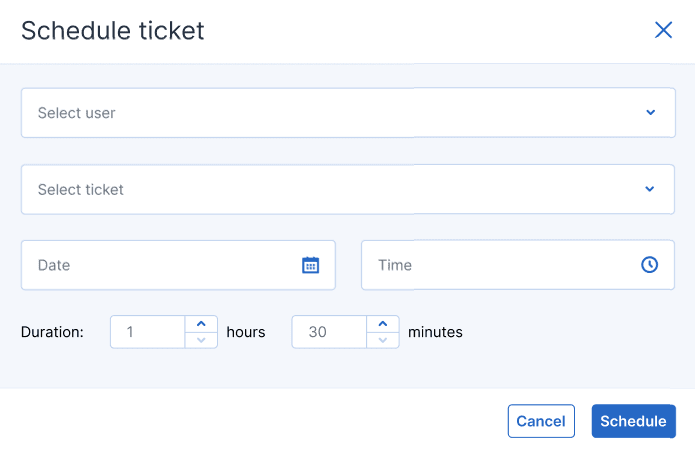
- Select the relevant user (the ticket owner).
-
Select the ticket that you want to schedule.
You can also select a ticket that has already been scheduled to reschedule it.
- Set the date, time, and estimated duration of the ticket.
-
Click Schedule. You can now view the scheduled item that you just created.
You can update scheduled tickets and manual time registrations only.
To schedule a ticket from within the ticket, see Scheduling a PSA ticket within a ticket.