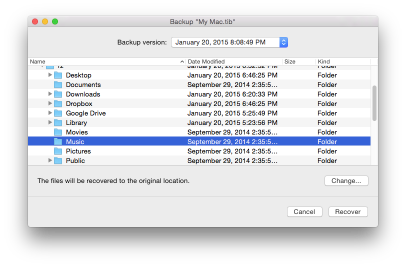
Follow the instructions below when you need to recover specific files and folders from a backup.
Recovery from a backup stored in local or network storage
To recover files and folders:
Open Acronis True Image 2016.
On the left pane, select the backup that contains the files and folders to recover.
Click Recover Files. The window with the backup contents opens.
In the Backup version list, select the backup version by its backup date. When you complete the procedure, the files and folders will be recovered to the state they were in on that date.
Select the files or folders that you want to recover.
[Optional step] By default, the selected files or folders will be recovered to the original location. To recover to a custom location, click Change and browse to the location that you want to use for the recovery.
Click Recover. When the progress is complete, your data is recovered to the selected date and time and stored in the original or custom location.