Updating PSA tickets
To update a PSA ticket
-
Go to Task management > Service desk.
The Tickets tab appears.
-
If you have a large number of tickets, use the filter to locate the relevant tickets.
Click Filter (or Saved filters if you have previously defined a filter), and select the values from the fields.
You can click the Add to Saved filters option switch to save a defined filter for future use.
PSA also comes with a number of predefined filters.
Alternatively, use the Search bar to locate the relevant tickets.
-
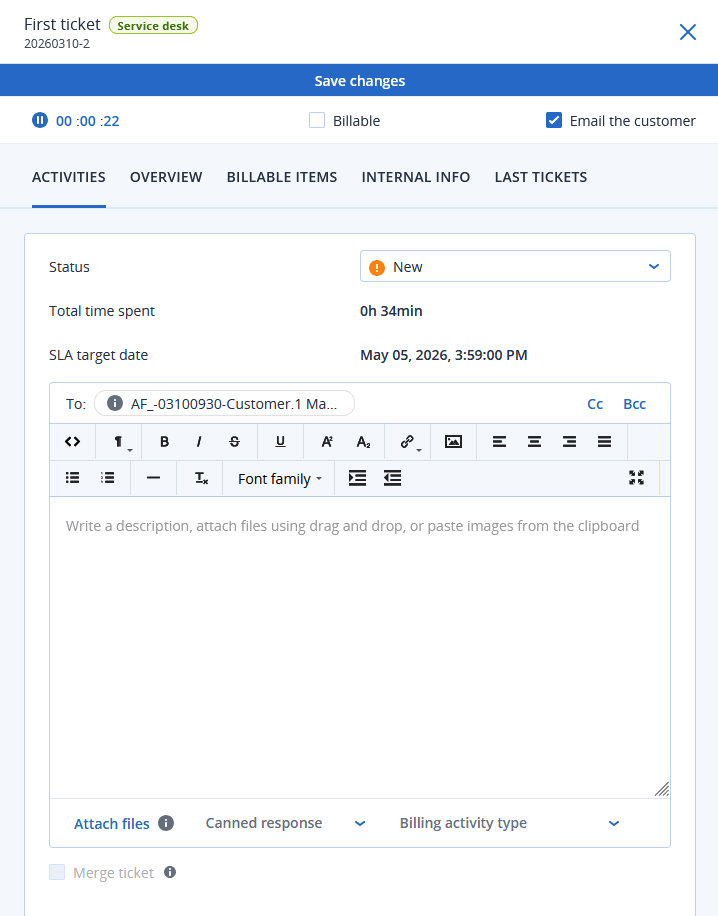
Click the ticket row to update a single ticket in the sidebar.
To edit multiple tickets, select the tickets in the Tickets tab, and then click Bulk edit. The changes you make are applied to all the selected tickets.
To open a single ticket in a new browser tab, click
 .
. -
Select a tab to modify a category of ticket settings:
-
Activities
Displays recent activity on the ticket, including the current status, and comments made on the ticket. You can also merge the ticket and schedule the ticket in this tab.
In this tab, you can change the status of the ticket.
For example, you can change it to In progress when you start working on it, or move it to Closed when it can be closed. When the status is changed to Closed, a ticket rating request email is sent to customers.
For more information, see PSA customer feedback.
You can also modify any previous updates to the ticket, which are listed at the bottom of the Activities tab. Click the arrow icon next to the relevant ticket update, and in the expanded section, click the pencil icon to modify the duration and/or existing comments.
If you change the status of a ticket that was created by an alert in the Cyber Protect console to Closed, the alert in the Cyber Protect console is also closed. -
Overview
Displays general ticket settings and customer details and contacts that can be modified. For more information, see Creating a PSA ticket.
In the Support agent section, you can set a ticket to "unassigned" by selecting Support group > Ticket pool. However, if you update a ticket assigned to the Ticket pool but do not reassign the ticket to another user, the ticket is automatically assigned to you.
You can change devices linked to a ticket; for example, if a ticket is created that does not include the correct device, you can click on the Configuration item dropdown list to select the relevant device.
Alternatively, you can click Open remote desktop to remotely connect to the selected device or Go to device to view additional options available for the currently linked device. These options include access to the integrated RMM platform where applicable:
- Active issues view: This opens an external list of issues in the RMM platform.
- Device Page - Status Tab: This opens an external RMM page with the device's general information.
-
Device Page - Properties Tab: This opens an external RMM page with the device's properties.
Only Datto RMM, N-able N-Central, and N-able RMM integrations currently support the option to remotely connect to the selected device. For devices managed by the Acronis platform (for example, with an Acronis agent), you can navigate directly to the linked device's details from a ticket and review its details, initiate a remote connection (if applicable and allowed for the device), manage the device, and so on. -
Billable items
Displays any billable items applied to the ticket, which can be updated. Products can be added to the ticket and once the ticket is closed and its time is processed, a sales item is automatically created for these products.
This functionality enables you to bill customers for extra activities and services as part of the ticket. For example, advisory services charged per hour, network cables, or software licenses. Sales items can be billed in the standard way.
-
Only products defined as Ticket products (in the product's settings) can be added to tickets as additional billable items.
-
You must select the product, its price, and its quantity.
-
Engineers cannot change the standard product price if the Price adjustable by engineer checkbox is not selected in the product's settings.
-
-
Internal info
Displays any internal notes or actions for the ticket.
You can add notes or actions.
-
Last tickets
(Read only) Displays the last three tickets from the specific user, and the last three tickets from the customer.
The Billable items, Internal info, and Last tickets tabs do not appear to users assigned the client manager or client roles.For more information about the fields available when editing a ticket, see Creating a PSA ticket.
-
- Click Save changes.