Defining recurring PSA tickets
By defining a recurring ticket, you can automate the creation of service desk tickets for repetitive tasks.
For example, you can:
- Schedule a weekly task to review incident reports and provide status updates.
- Schedule a monthly task to install server updates and send a report.
- Schedule annual tasks to process a domain and SSL certificate renewal.
- Schedule annual IT training sessions for customers.
Recurring tickets are only available for service desk tickets. Project and quote tickets cannot be set with a recurring schedule.
In addition, recurring tickets - both the original ticket and its recurring instances - are included in dashboards and reports as part of service desk tickets.
To define recurring PSA tickets
- Create or update a service desk ticket.
-
[When creating a ticket] Click the Schedule section to expand it, and then click the Schedule ticket option switch to enable it.
[When updating a ticket] In the ticket Activities tab, select the Schedule ticket checkbox to expand the scheduling section.
If you disable the Schedule ticket option in the original ticket, recurring ticket settings are also disabled.
If you disable the Recurring ticket option, tickets that were previously scheduled to be created will not be created. Any non-modified recurring ticket instances are also deleted and removed from the system. Any modified ticket instances (for example, the ticket was reassigned to a different user) are saved as not scheduled. These saved tickets can only be updated or closed manually.
- Define the schedule for the ticket.
- Click the Recurring ticket option switch to enable it.
-
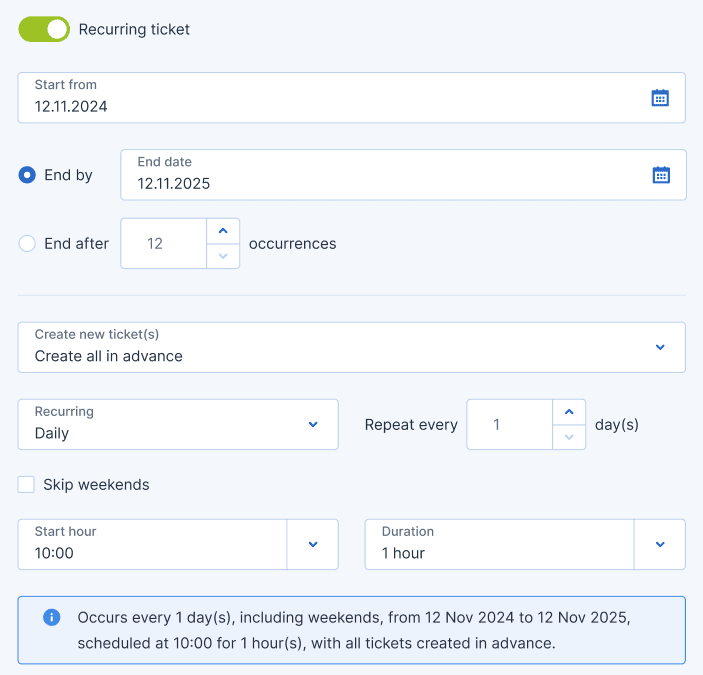
Define your recurring settings:
-
Select a start date.
It is possible to select a start date in the past. However, recurring ticket instances are only scheduled for the future. As a result, any recurring instances scheduled in the past (between the start date and today) will not be created. -
Select the End by option to select an end date, or select the End after option to end the recurring schedule after a set number of occurrences.
-
Select how new recurring tickets are created from one of the following:
-
Select When the previous scheduled ticket is closed to ensure the next scheduled ticket is only created when the previous ticket is closed.
The first ticket is created when clicking Create (the original ticket is not the first ticket).
-
Select A set number of days before the scheduled date to ensure the ticket is created a set number of days before the scheduled date. Select the relevant number of days.
-
Select Create all in advance to create all tickets in advance (up to a maximum of 100). All tickets will be available in your calendar upon clicking Create.
-
-
From the Recurring dropdown, select from one of Daily, Weekly, Monthly, or Yearly. Then define the frequency in the Repeat every field. For example, if you want to create a ticket every fortnight, select Weekly, and then 2 in the Repeat every field.
When selecting Daily, select the Skip weekends checkbox to ensure a recurring ticket is not created on the weekend (Saturday and Sunday).
When selecting Weekly, select the relevant day(s) of the week you want the ticket created. For example, if you require a ticket created three times a week, select the relevant days.
When selecting Monthly, select one of the following:
-
A specific day in the month. For example, the 21st of every month. If a ticket is scheduled for the 31st, the ticket is created on the last day of the month for months with less than 31 days.
-
The [first/second/third/fourth] [day of the week] in the month. For example, the second Wednesday of the month.
-
The last [day of the week] in the month. For example, the last Wednesday of the month.
-
The first day of the month.
-
The last day of the month.
-
-
In the Start hour and Duration fields, define the time and duration in which the recurring ticket should be scheduled.
-
-
[When creating a ticket] Click Create.
[When updating a ticket] Click Save changes.
The initial recurring ticket is scheduled and can be viewed in the Scheduler tab. Any recurring instances of the ticket that are created are also shown in the Scheduler tab.
The recurring instances of the ticket are set with the status of Activities scheduled, and include details about the next contact date (the ticket instance date), the date, hour, and duration of the scheduled ticket instance, as well as other details set in the initial ticket.
For information about updating a recurring ticket schedule and its ticket instances, see Updating recurring PSA tickets.